Step 1
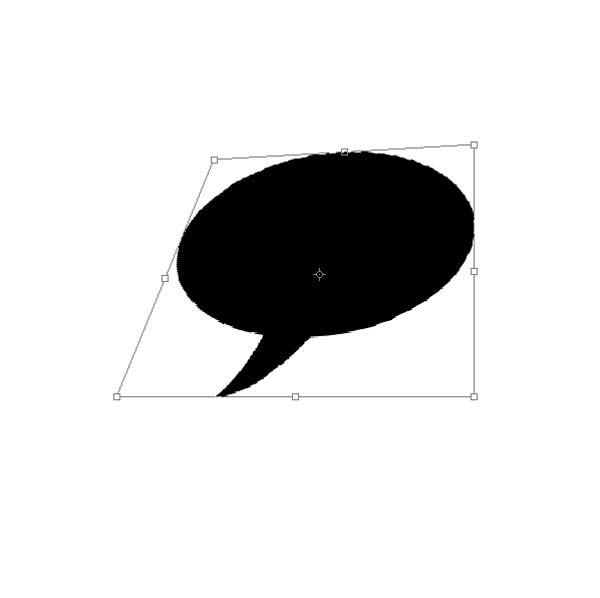
In 600x600 px document size, star with drawin shape from Shapes tool.

Step 2
With Skew rotation option deform him like this.
Step 3
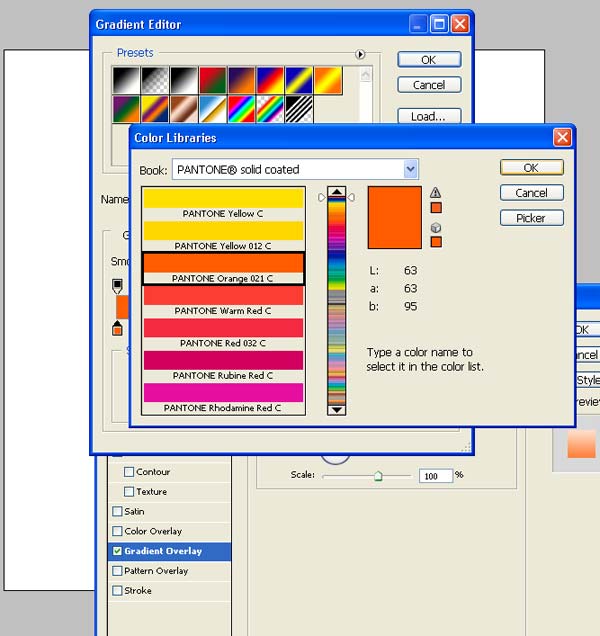
In Layer Options use Gradient Overlay. Replace defaul color (black) with Pantone Orange 021C
Step 4
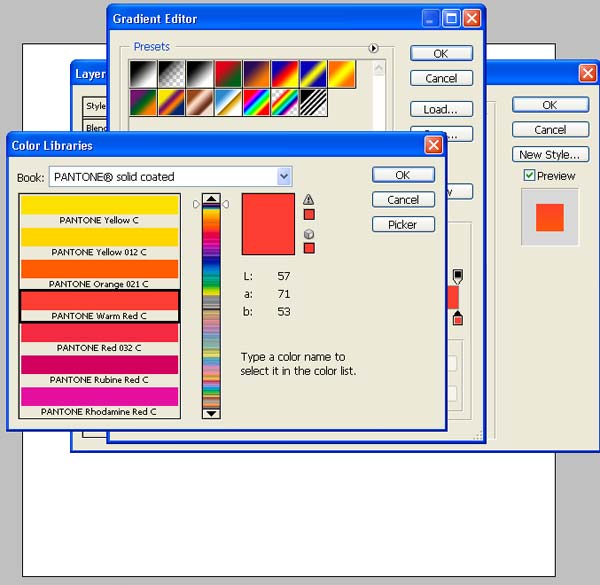
replace second defaul color (white) with Pantone Warm Red C
Step 5
Open new layer and draw new shape inside of first layer. Put Second layer in front of.

Step 6
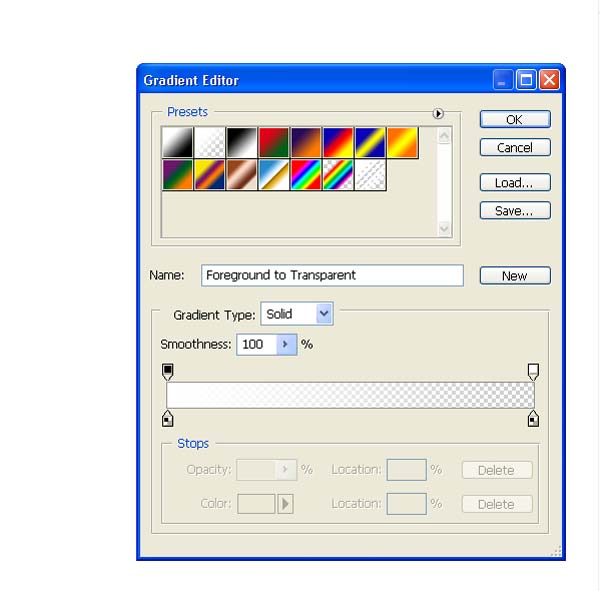
In Gradient Option use Foreground to Transparent with white.
Step 7
This is how it look's.

Step 8
Then put layer opacity to 60%
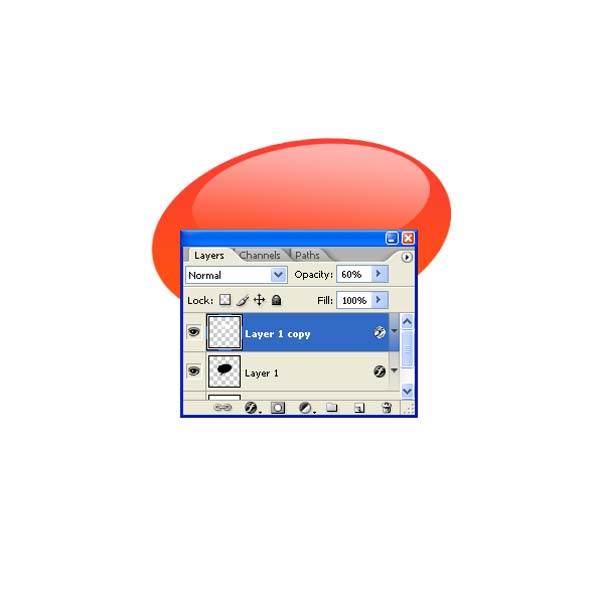
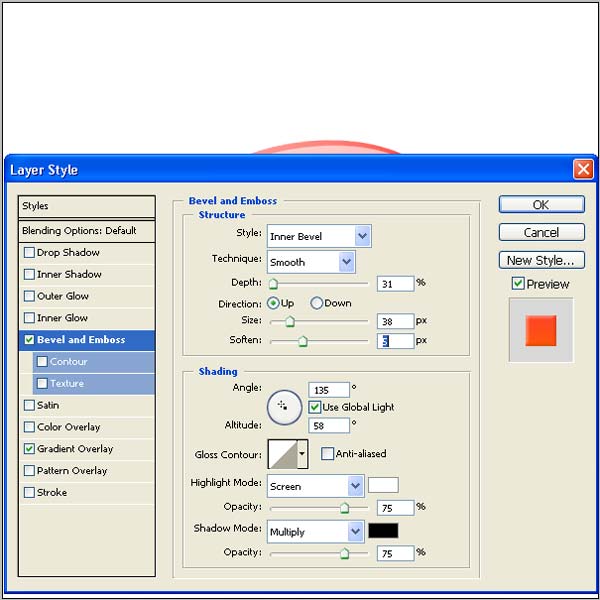
Step 9
Go back to first layer and give Bevel and Emboss like in picture.
Step 10
Now duplicate first layer and color him in black.

Step 11
Put behind of first two layers and make position of him like in picture.

Step 12
Now select first layer.
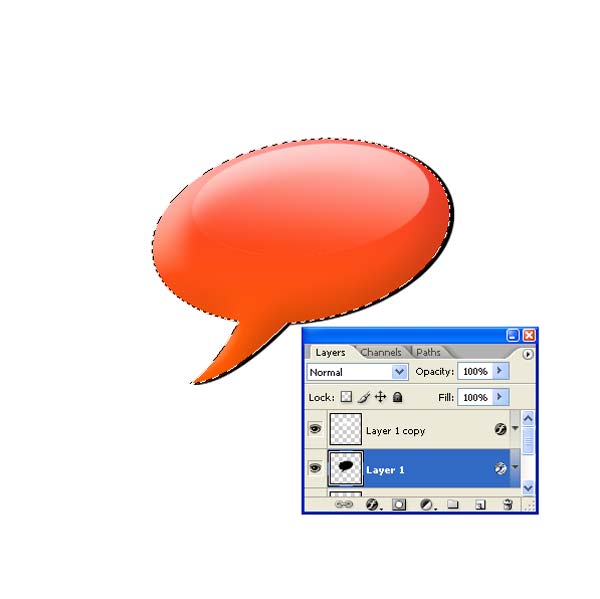
Step 13
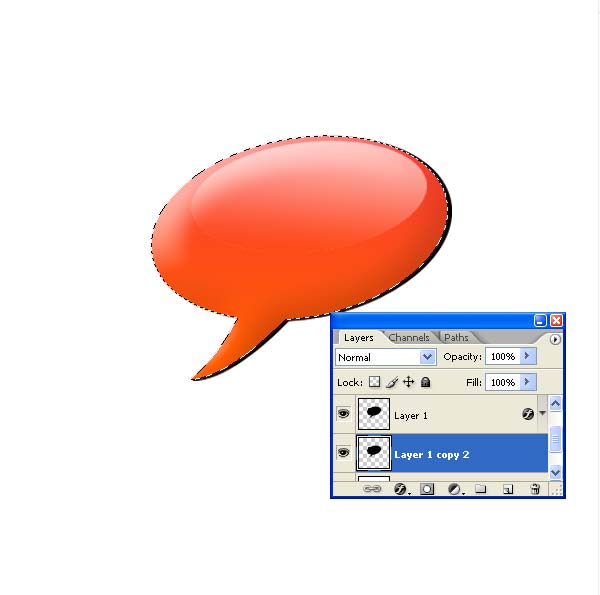
Stay with selection but select third black layer.
Step 14
Press delete. Dont move him, this is only preview of to see what part of layer stay.

Step 15
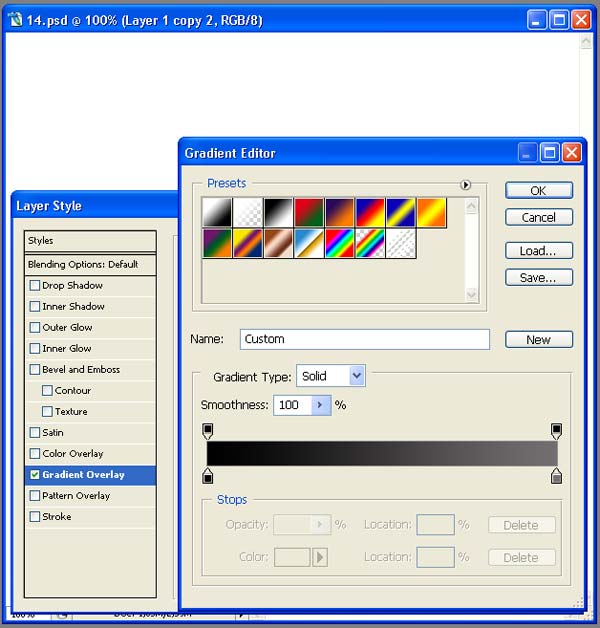
Now give him gradient overlay with black and gray color. Dont go with lighter gray. Just some 10-20% minus of black.
Step 16
Now duplicate again layer. you can use and third layer to duplicate. Move him like in picture and color him in P Warm Red.

Step 17
Simply thing's give best results. Use ariel rounded font. Tipe text. Color him in black.

Step 18
Next word color in Pantone Orange 021C

Step 19
When we finish with text, open new layer and draw right line below the text.

Step 20
In Filter>Blur use Gausian blur.

Step 21
And we get very professional logo who can be nice element for any web design concept.
In next step you can see one more solution.

Step 22
Finish