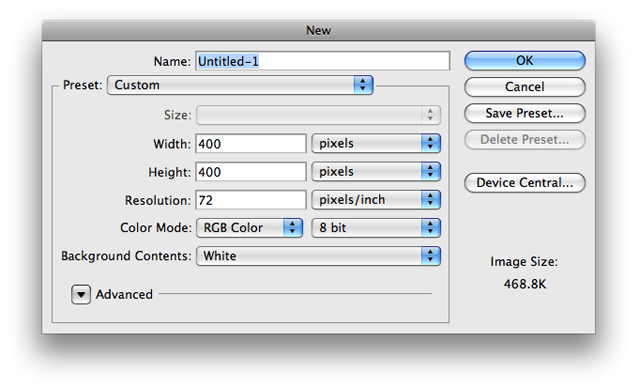
1. First thing we want to do is create a new canvas of 400x400
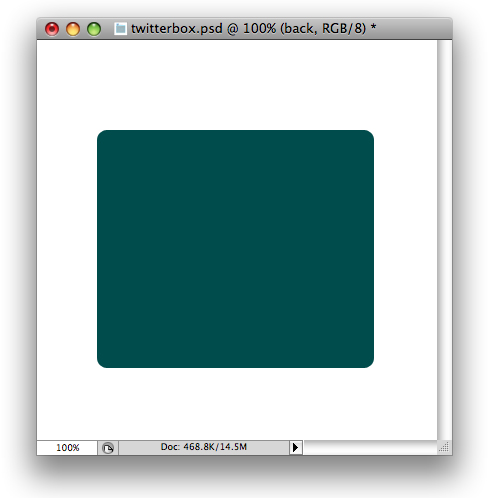
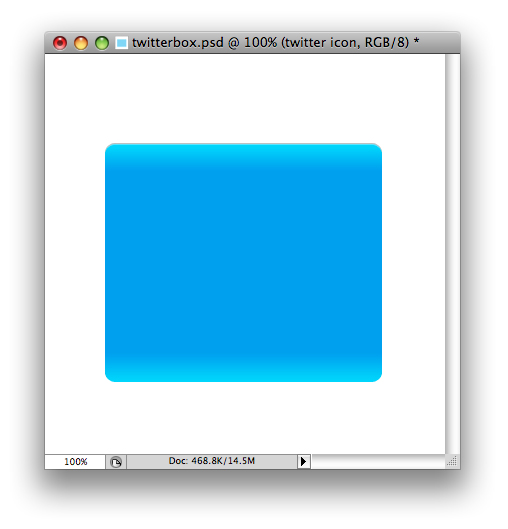
2. Next lets go ahead and get out our rounded rectangle tool and set the radius to 8px. Then make a rectangle similar to the following:
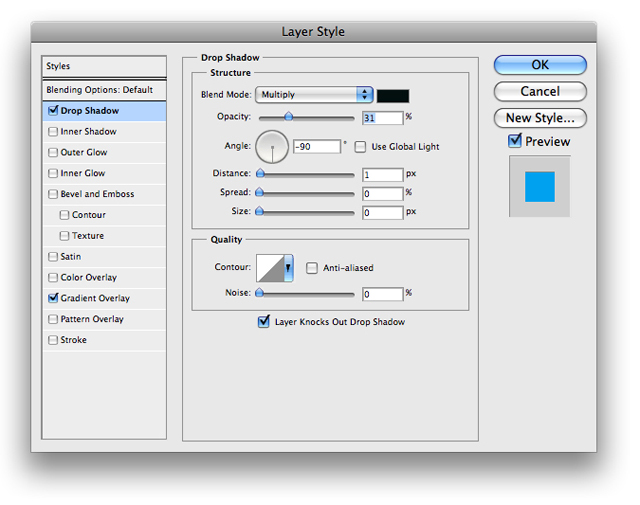
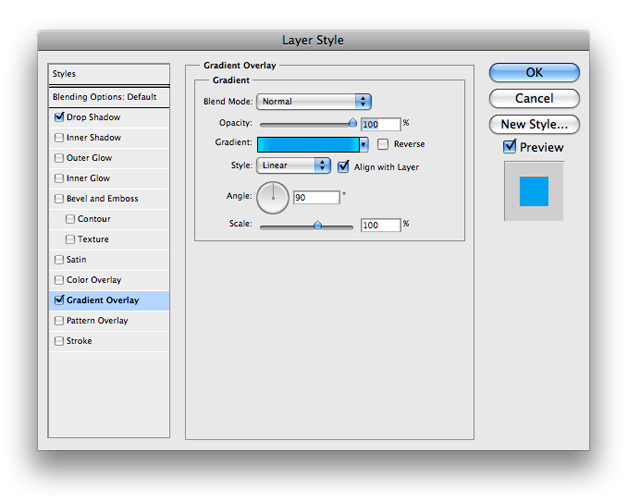
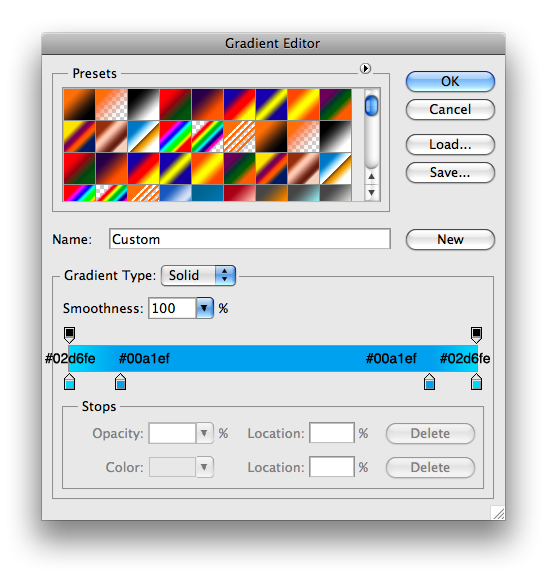
3. Now lets go ahead and add a few blending options to that layer. To do so right click the layer and choose blending options and input the following
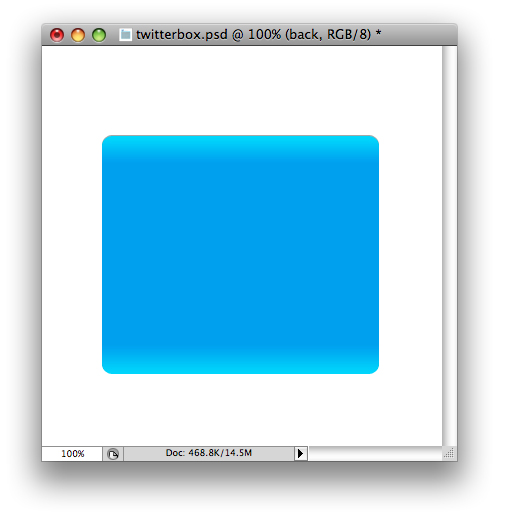
4. Your document should look something like this:
5. Next we want to add a very slight highlight to the top of our rounded rectangle. The way we will do this is to CTRL+CLICK your rounded rectangle layer to make a selection of it. Next, lets go ahead and create a new layer and fill the selection with #FFFFFF. Using your arrow keys, and with your rectangle selected, move the selection down a couple pixels and choose EDIT>CLEAR
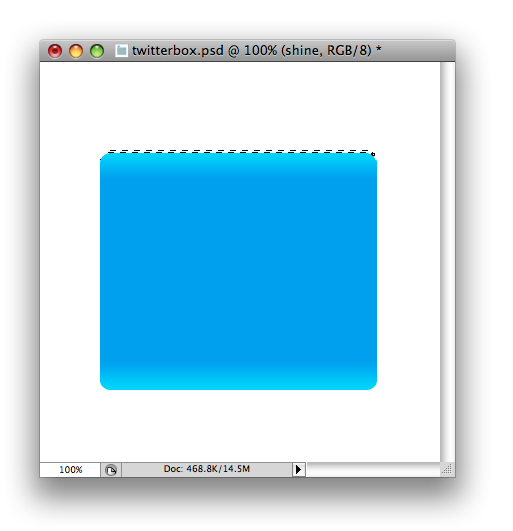
6. We want to go ahead and lower the opacity of this layer to about 30% and you'll have something that looks like this:
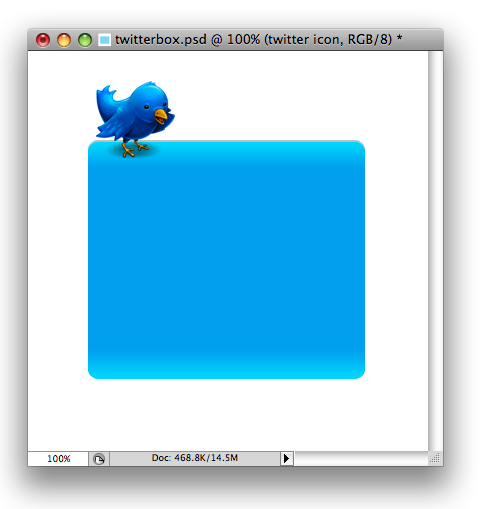
7. Next we want to go ahead and add a Twitter icon to our content box. This is the one I choose to use

8. Try to position it on the top as I have:
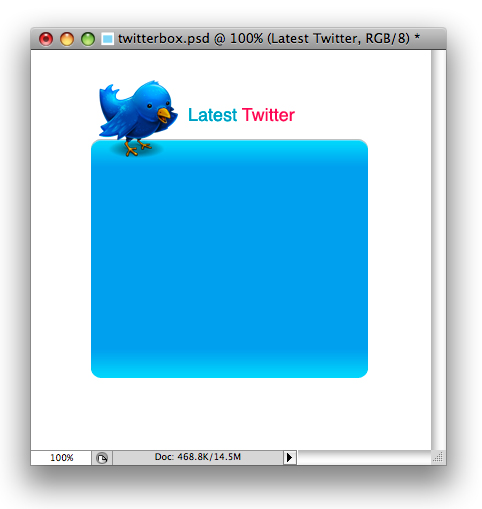
9. Next I added the heading to my content box. For 'Latest' I used #04a7ca, and for 'Twitter' I used #f84c6c, and a generic font, helvetica.
10. All that we need to do now is create how our tweets will be displayed. Using the rectangle marquee tool, create a selection similar to the following and fill it with #FFFFFF
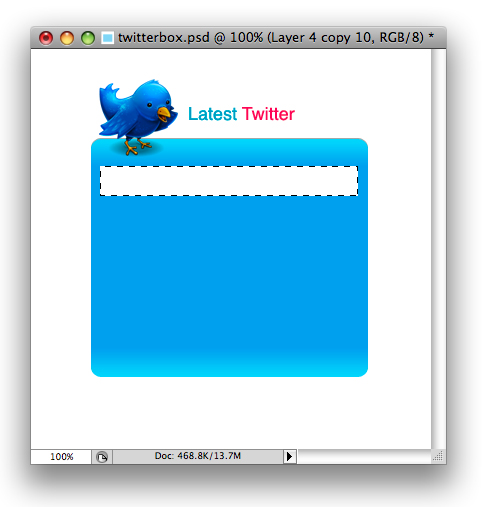
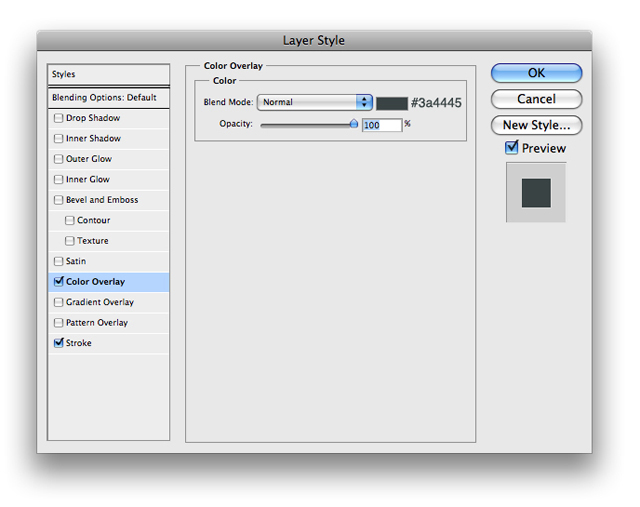
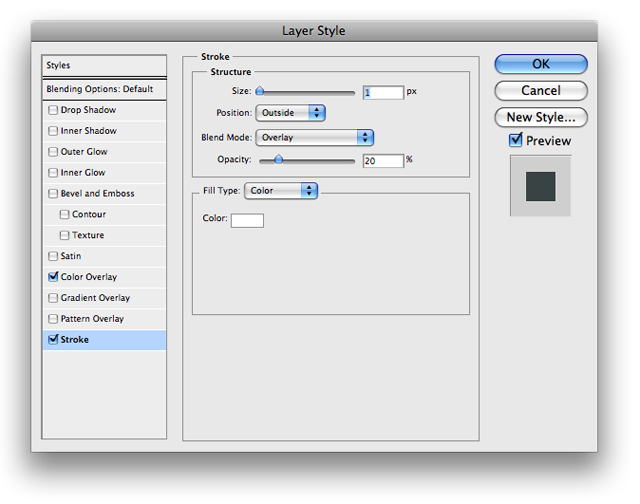
11. Next, lets go ahead and input the following blending options onto that layer
12. Add some text above the box, and then you'll have something that looks like this
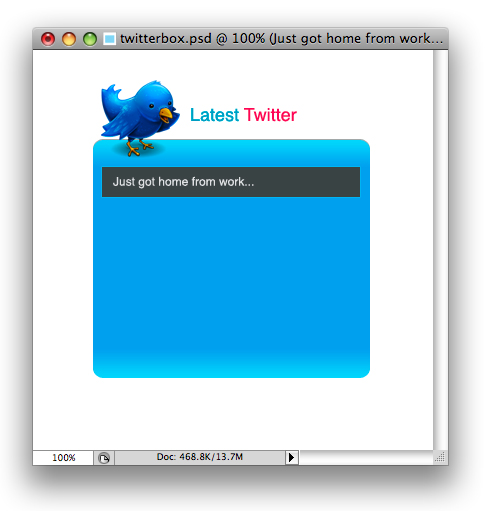
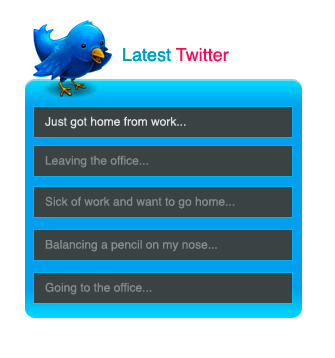
13. Once you do that you can copy it down to fill up the box and your final result will look like this: