Step 1:
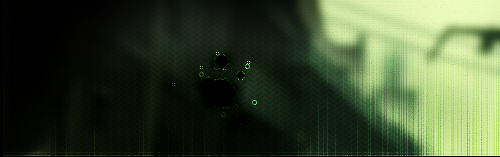
Let's start out by creating a new file. I used a 1000x260 pixels canvas set at 72dpi, and I filled my background with black color shade. Now grab the Header background here and insert it into the top of your canvas.
Step 2:
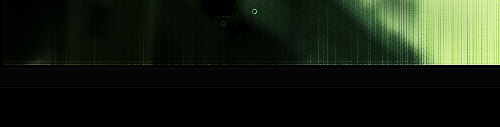
Create a new layer then draw a long rectangle with #050505 color shade and 1000 x 18 px dimensions below the header design. Then in a new layer draw a 1 px line with #0D0D0D color shade across your canvas just below the long rectangle.
Step 3:
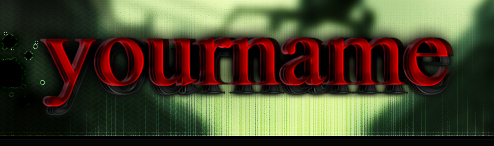
Now add your website name to the header with a nice text effect.
Step 4:
Create a new layer then draw random white circles all over your text design something like this:

Step 5:
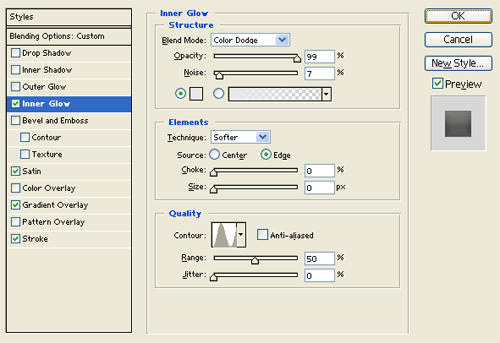
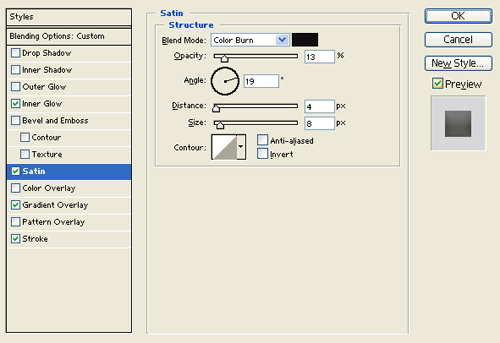
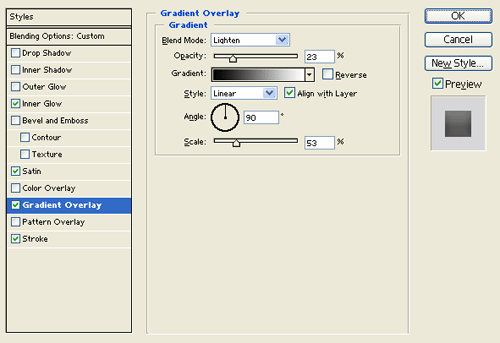
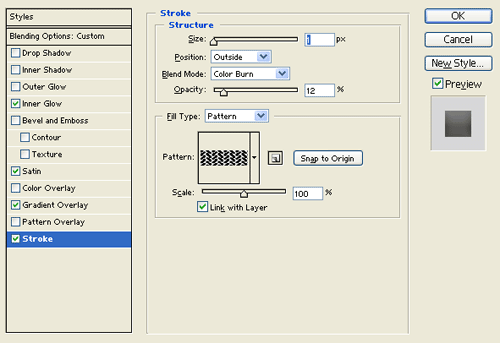
Under Layer Style(Layer > Layer Style) add an Inner Glow, Satin, Gradient Overlay and Stroke blending options to the random white circles layer. Then set the layer's blending mode to Darken.

Step 6:
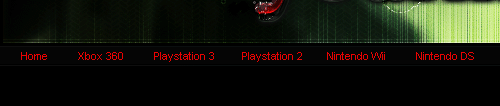
Select the Horizontal Type Tool then set the font family to Arial, regular, 11 pt, none and #E90000 color shade. In a new text layer type your first set of navigation links on the dark long rectangle.
Step 7:
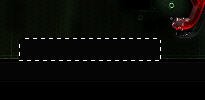
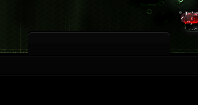
Create a new layer set and name it 'Tab Design'. Create a new layer, sing the Rounded Rectangle Tool draw a small dark rounded rectangle with #050505 color shade and 142 x 60 px dimensions. Then cut the bottom half of the rounded rectangle, position it as shown below.
Step 8:
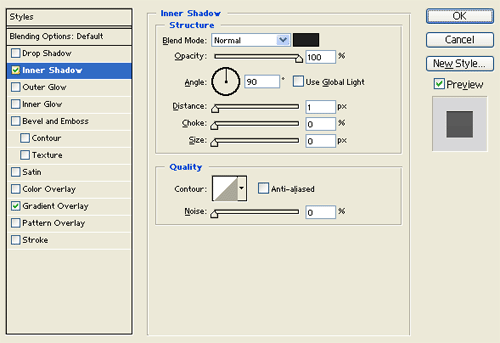
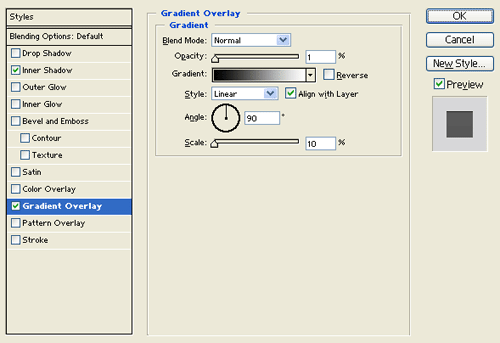
Under Layer Style(Layer > Layer Style) add an Inner shadow and gradient overlay blending options to your black half rounded rectangle layer with the settings shown below.
Step 9:
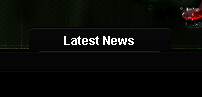
Select the Horizontal Type Tool then set the font family to Arial, bold, 12 pt, none and white color shade. In a new text layer type 'Latest News' on the center of the tab design. Then in a new layer draw a 1px line with #640000 below the text.
Step 10:
Now add more navigation tabs for the rest of your links by duplicating the tab you have just created and changing the text.

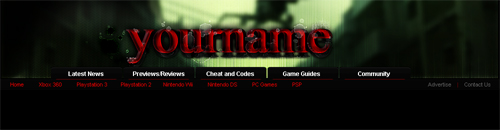
Mine ended up like this and yours should be almost identical if you used the same settings.