Step 1:
Firstly start by making a new document in Photoshop, use a document size of 300 x 200 pixels. Leave the background as white.
Next thing to do is find the Ellipse Tool, you can see where to find it in the below image.
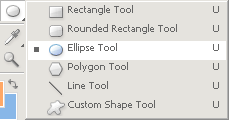
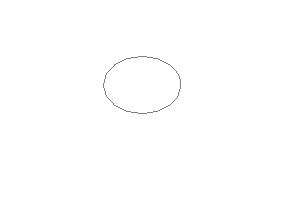
Be sure you have the following settings for your Ellipse tool set, then draw a lob-sided ellipse on your canvas.

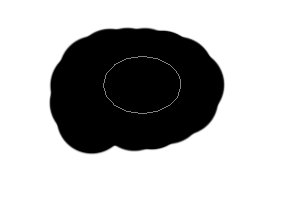
Create a new layer then brush some black over your path.
Find and get out the Pen Tool, right-click your path and click Create Vector Mask.
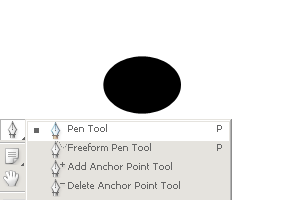
In your layers pallate go back into the path and add in a little triangular shape to make it look like one of those chat bubbles.
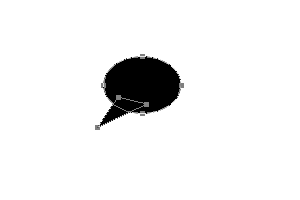
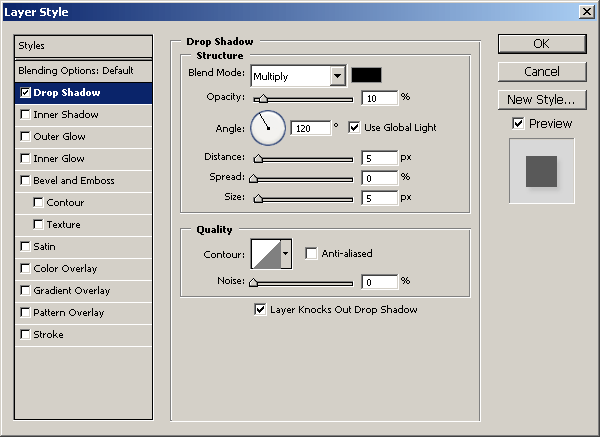
I lastly add this Drop Shadow to my black layer.
Step 2:
Duplicate your main black layer and brush a bright orange in the layer area.

Using the Add Anchor Point Tool select your path/points, press Ctrl+T to go into the Free Transform area.
Change the Width and Height to about 84.0% each. You might need to move the whole thing over to the left slightly.

Step 3:
Apply the following layer styles to your inner orange layer:
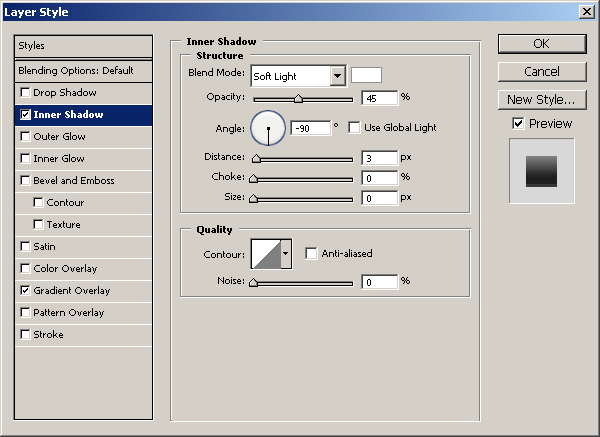
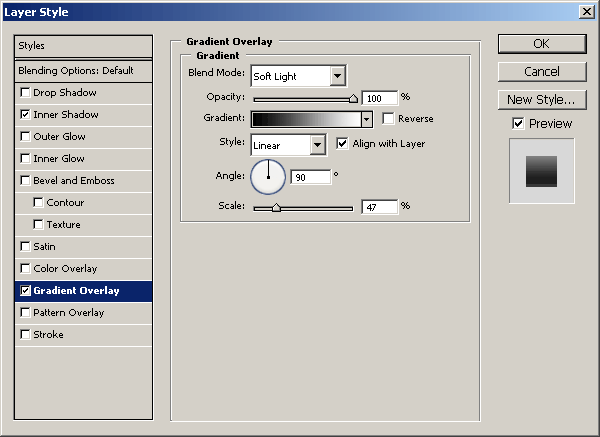
And now you should have something that looks like this:

Step 4:
On a new layer create another ellipse at the top, fill the selection with black. Now apply the following layer styles/settings:
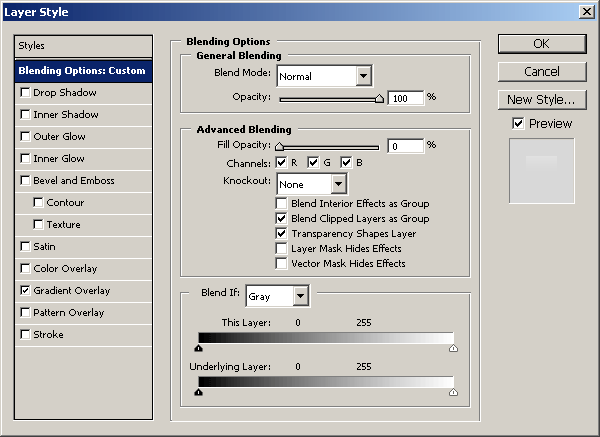
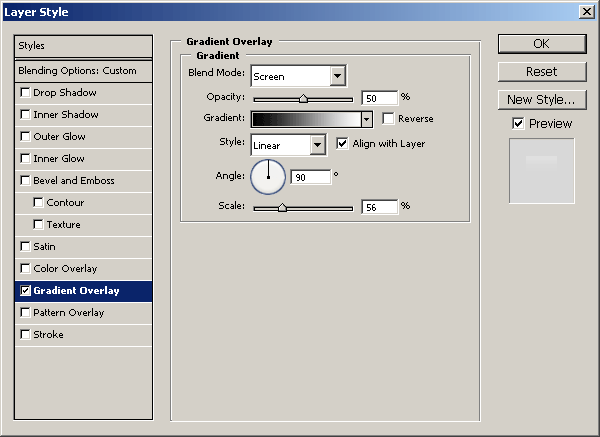
And that should leave you with a nice glossy highlight like this:

Step 5:
Duplicate your layers then flip them horizontally (Edit > Transform > Flip Horizontal).
Now you just have to resize slightly and change the color layer with a different color. The color I used was #3381d7.

Thanks for reading the tutorial, we hope you enjoyed it.