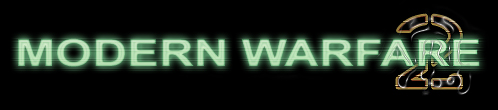
1. Let's start out by creating a new file. I used a 700x300 pixels canvas set at 72dpi, and I filled my background with black color. Now select the horizontal type tool then set the font family to arial, bold, 48 pt, smooth and #D3EDC4 color shade. In a new text layer type "Modern Warfare" or text anything you want.

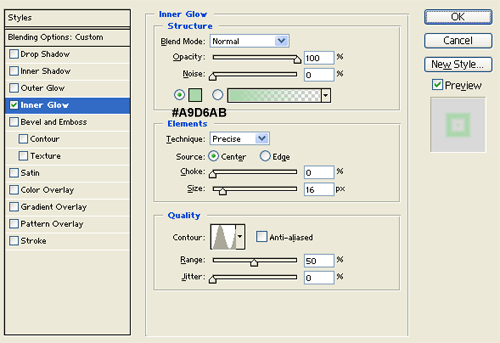
2. Under layer style (layer - layer style) add an inner glow blending option to your white text layer.
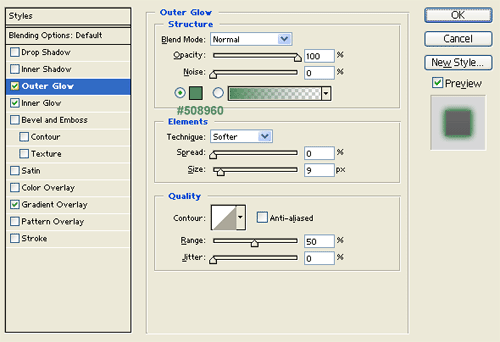
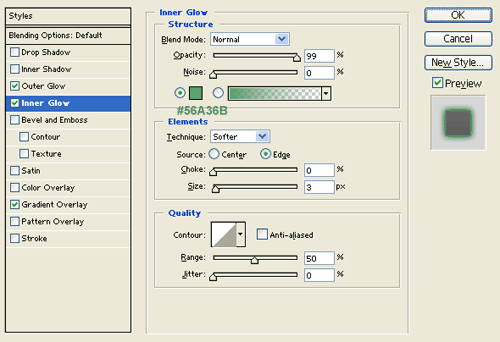
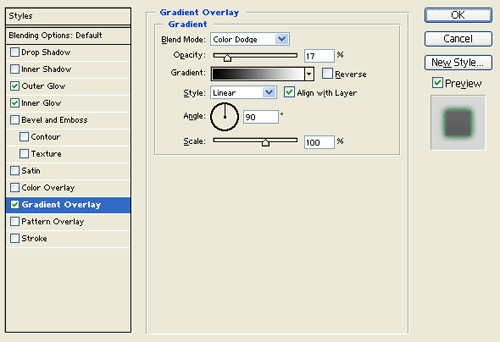

3. In a new text layer type your name in black on the same location as your first text.

4. Under layer style (layer - layer style) add an inner glow blending option to your black text layer. Then set the layer's blending mode to lighten.

5. In a new layer draw a 1 px white line across your text then draw a 1 px black line below the white line. Now set the layer's blending mode to soft light at 22% opacity level.

6. Now add more transparent lines all over your text design.

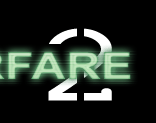
7. Now in a new text layer type 2 using a large font size and rasterize the layer so its edible. Then cut out a vertical rectangle on the middle of the 2.
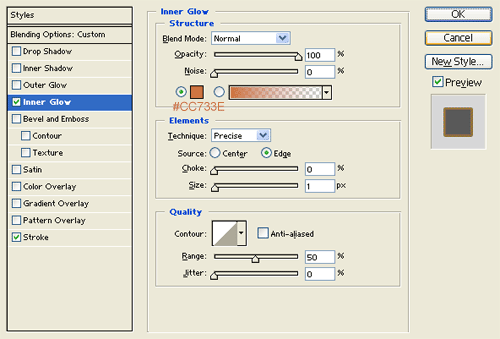
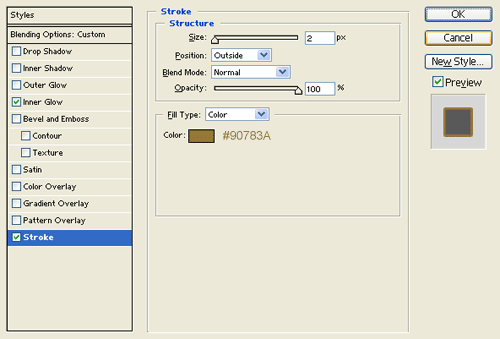
8. Under layer style (layer - layer style) add an inner glow and stroke blending options to your 2 shape layer. Then set the layer's blending mode to darken.
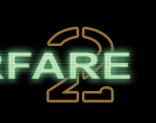
9. You've just created a modern warfare 2 text effect.