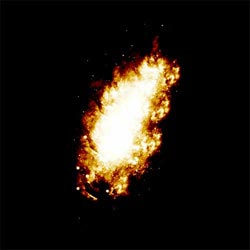
This tutorial is a relatively simple method of creating a fire or explosion effect useful in space imagery. This tutorial mostly deals with the effects used to achieve the colours in an explosion, as opposed to the shape. Now i strongly recommend you experiment using the values and layer blending modes since i have discovered that extra/better effects can be created should you play around. I hope you can learn from this tutorial, instead of just re-enacting it. It has been purposely structured to allow the maximum amount of customisation.
I hope you find this useful.
Step one is the most complex part of the tutorial, the rest is straightforward. Now there are many techniques of creating and brushing an effect like this, however it would take another tutorial to describe how i create this, so we'll just skip and let you work out how to create your own. (hint, i do use textured brushes and smudge tool frequently).
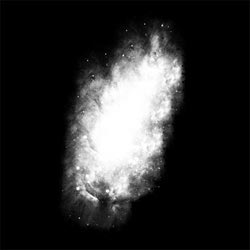
So, on a black background, brush out a firey shape in white on a new layer, including whispy bits near the edges for added realism, and some debris and sparks wouldn't go amiss either too.
Try using some grunge brushes for the edges too, they can help, but just try and create a nice fire effect.
Step two - this is simple.
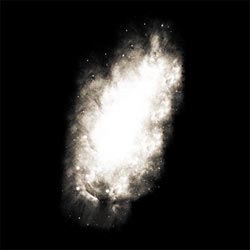
Duplicate your initial brushed layer, and set the blending mode to "overlay".
Following this, hit ctrl+u, check the colourise box, then use the following values.
Hue = 35
Saturation = 25
Lighting = -50
This should recreate the colour effects as depicted on the left image.
Step three - even simpler.
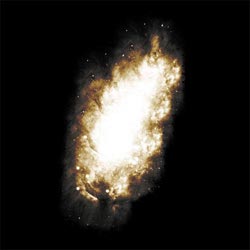
Duplicate your overlay layer and set blending mode to "color burn". This will add a better fire effect to the image, giving it more colour variation.
Now you have two options, continue, or keep the current effect. If the latter, merge the three fire layers and set to hard light. That should be a simple effect, however you can enhance it.
Using the folder icon, create a layer set, and in the correct order (as it stands) put the fire layers in the set. Now select the set and hit ctrl+e, making one layer.
Step four - you've done before (fo shizzle, check rhymage!)
Basically, repeat steps two and three.
So thats duplicate, overlay, use hue settings, duplicate again, color burn, layer set and merge down.
This will create the final effect that you need, although it's very messy, but step 5 will solve that.
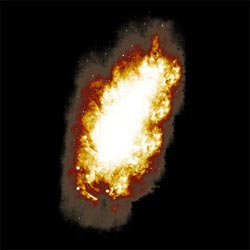
Step 5... this is about it.
Set this final layer you created during step 4 to hard light, and shabang, instead firey explosion stuffs. It works especially well in space scenes i find.