

First open up a new document 8x8 pixels.
Draw a pattern like the one below.

Then go to Edit>Define Pattern.
Enter a name for your pattern.
Now open a new document about 300x300 pixels.
As this is where we are going to create our to styles needed for the metal effect.
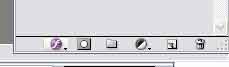
Create a new layer and fill it with black. Then go to the layers Blending options. (the little f at the bottom of the layers pallet)
Now we need to add a pattern over lay. use these settings.
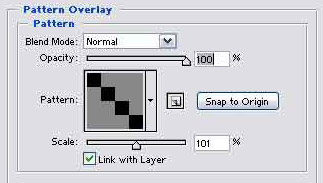
To get the pattern your created you must select the arrow next to where the picture of a pattern is and scroll down un till your find the pattern which u named in the first few steps.
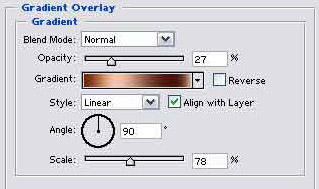
Now we need to add a gradient overlay. Use these settings.
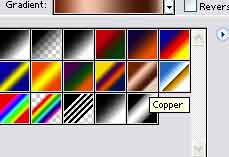
Click on new style and name it Metal 1.
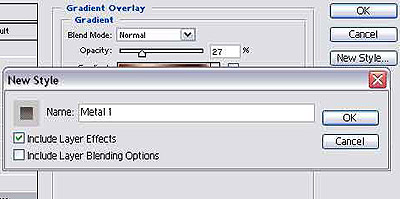
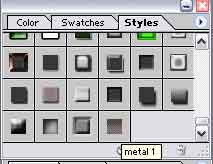
And you will now be bale to see it in the styles section
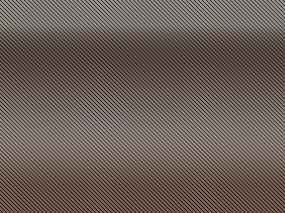
Your image should look like this now.
Duplicate the layer and open the blending options. We need to add a Bevel effect. So use these settings.
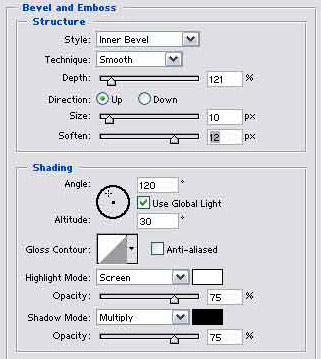
Click new style and save it as metal 1 bevel.
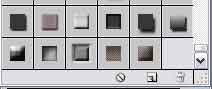
Now Your have created the two styles which will allow your to create simple metal effect.
To change the colours of the metal. Create a new layer above the background layer and starting layer above merge it down, and the repeat so that u have the background layer and your layer with the metal effect.
Press ctrl+u, make sure the colourize box is pressed and move the sliders around to get a nice colour.
