This is what your piece should look like after fading the edges. This produces the effect of faded edges which may be useful for many endeavors.
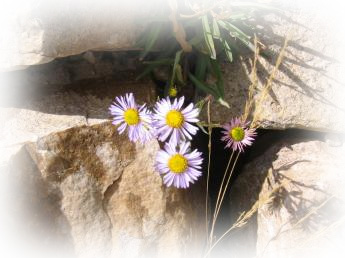
1. Open your image in Adobe Photoshop.
I have chosen to use this photograph.
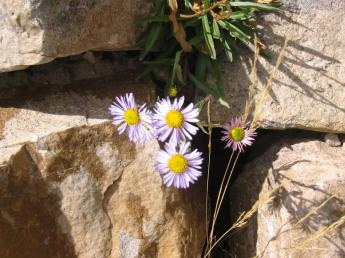
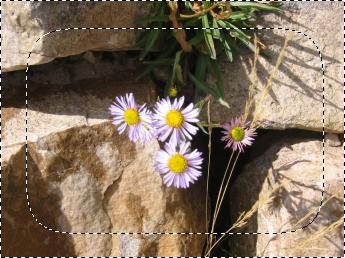
2. Using the rectangular marquee tool, make a rectangle like shown below.
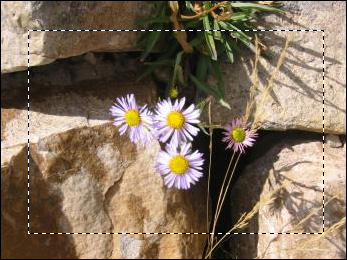
3. Then go to Select > Inverse and you will get something like this.
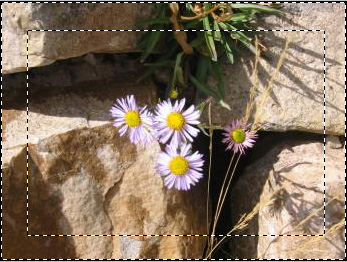
4. Go to Select > Feather.
5. When the "Feather Selection" box displays, enter a number in the ballpark of 20 for the feather radius. Your result should look like this.
6. Press the delete key on your keyboard. You should have something like the image shown below.
7. You can take it a step further and make your piece a bit more spruced up. I hope you enjoyed this tutorial!