1. Here's a simple style effect to create a christmas tree ornament effect combined with the 'Shape Tool' and an image.
2. (Foreground color determines the color of the shape that you draw, with I used white in this
case / #ffffff)
Start with the 'Ellipse Tool (U)'...

3. ...and draw in (hold 'Shift' to constrain to proportion)the shape of the ornament.

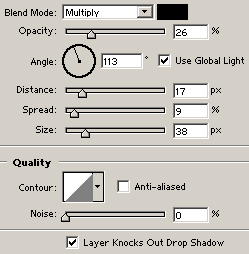
4. Next, let's add some blending styles. So, right click on the shape layer in the Layers Palette and choose 'Blending Options' and from the Blending Styles Control Panel, first set the an optional Drop Shadow as I have captured below...
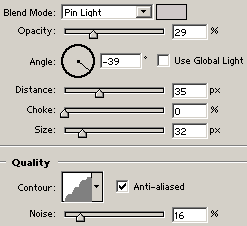
5. Next, an Inner Shadow Style using Blend Mode color of #CFC8C8. Note the Blend Mode and the Contour that I used.
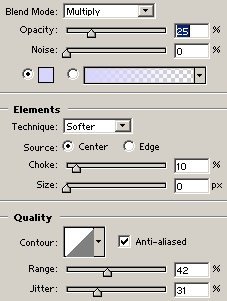
6. Next, a 'Inner Glow' using color #D8D5FC.
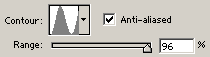
7. Then a Bevel and Emboss. Using the Ring Contour map.
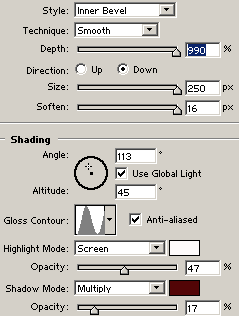
8. Then the Contour, again the Ring was used again. Click OK to exit the Style Panel.
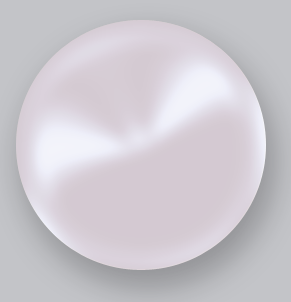
9.And you should have a simple ornament looking effect as I have captured below.
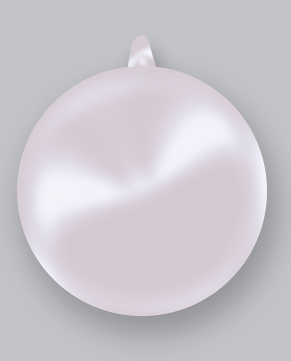
10. Next, I added a top piece of the ornament on a new layer, using the 'Pen Tool (P)' again, and placed that new layer below the ornament layer in the layer stack. I then used the same style (right click, 'Copy Layer Style' from ornament) and right again to 'Paste Layer Style' unto this one. (Right click again on this style to 'Scale Layer Effects' to suit the color scheme of the overall ornament.)
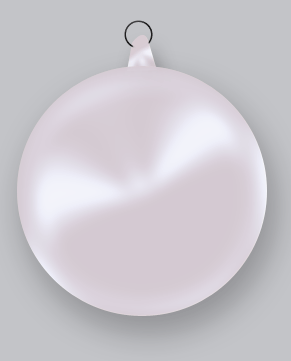
11. Next, I added a simple ring layer as captured below.
12. For a real ornate effect, I then copied a picture of a snowman from the web and scaled into position in the centre of the ornament. (This snowman picture is now the uppermost layer in the Layers Palette)
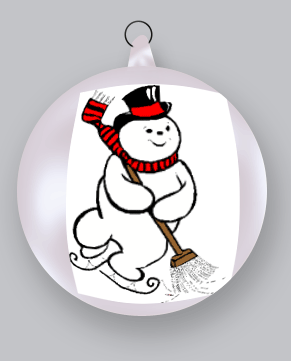
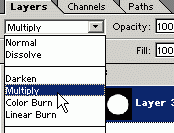
13. To save time on clipping this picture (separating the white background) I simply set the snowman picture layer 'Blending Mode' to 'Multiply'.
14. And as a final touch I add a frosted snow effect behind the snowman picture layer using
the color white, brushed on, Filter/Blurred and a reduced Opacity level of 62%.
Here' is what the Layers Palette should look.
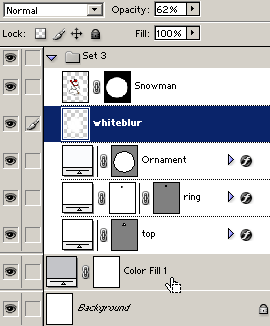
Here is the Final Result.