| 1.
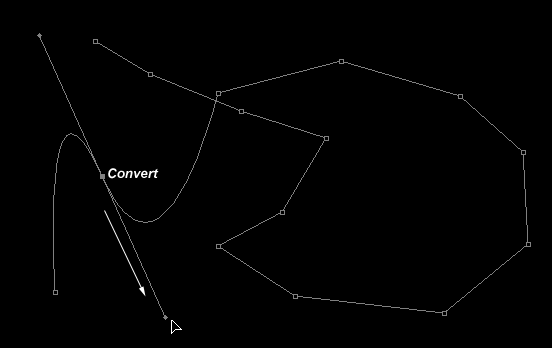
A simple way to create a swirly pattern or lines using the Pen Tool. Using a dark background works best in this case. So I used black as the background. Select the 'Pen Tool (P)' and up on the 'Options Bar', select the 'Paths' option.(Second one) Using this Option will not create a new layer, so it's best to do that now. 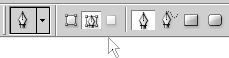 Then click (Start Here) and continue to add 'Anchor Points' (in the direction I have indicated with the arrows) (Ultimately the Path Shape is up to you!) |
|
|
| 2. Next, select the 'Convert Anchor
Point Tool' and just start adjusting the anchors until your happy with the curved result.
|
|
|
|
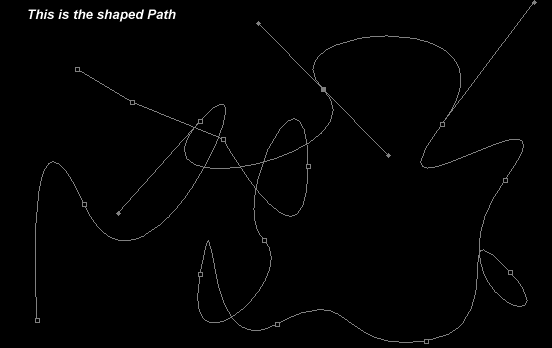
| 3. Continue on with the 'Convert Anchor Point Tool', and work your way around the Path. |
|
|
|
| 4. This is what my Path looks like. |
|
|
|
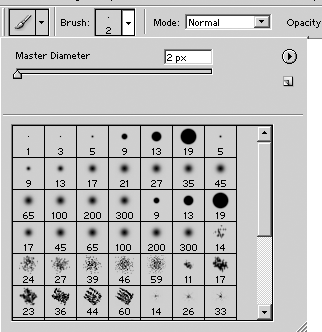
| 5. Now lets select a Brush Preset to use to
stroke this path. Select the 'Brush Tool (B)' on the Toolbar, and up on the 'Options Bar' select the 'Brush Preset Picker' and from the list choose a soft edge brush. I chose a brush tip of 2. Hit the 'X' key on the keyboard to set the foreground color to White. |
 |
|
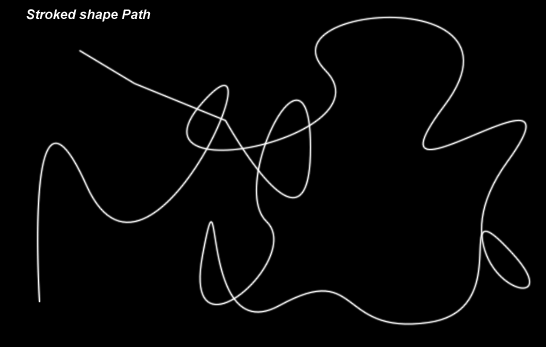
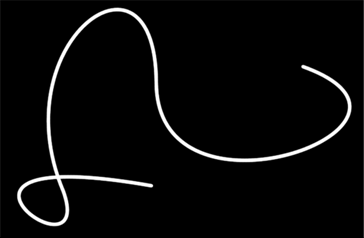
| 6. Now select the 'Pen Tool (P)' again
and right click along the edge of the 'Path' that you created. Then from the drop down options, choose 'Stroke Path' Then from the Tool: options select 'Brush' Nothing fancy, but combined with other elements it can really enhance an image. |
|
|
|
| 7.Here are some other variations.(Thicker Brush Preset,
Fade Brush Preset, Applied Motion Blur Filter) |
 |
Her
Making Swirls with the Pen Tool
Added:Nov 30, 2004 Rating:

 Level: Beginner Software:
Photoshop
Level: Beginner Software:
Photoshop
Level: Beginner Software:
Photoshop