| 1. Here's a quick color/photo manipulation using blending styles...yip, you read right, follow along to see how. |
|
| 2.
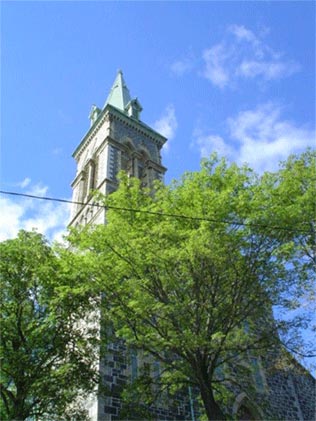
Here's the starting photo. A church in my neighborhood, surrounded by lush trees. |
 |
|
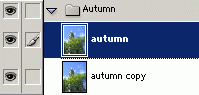
| 3. I've created a Set with the original photo
called'autumn'. I then duplicated it and positioned the copy version below the original in the layer stack. |
 |
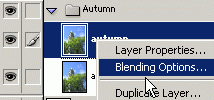
| Next, right-click on the original photo layer
and choose 'Blending Options' as I have captured below. |
 |
|
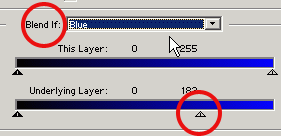
| 4. In
the main 'Blending Options' panel change the 'Blend If' default Grey to 'Blue' and then
drag the far right 'Underlying Layer' slider to the left as I have captured below. |
 |
|
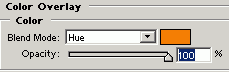
| 5. Next, from the 'Color Overlay'
blending option change to a color that best represents autumn leaves. (I used #F17F04) and
change the 'Blending Mode' to 'Hue' as I have captured below. |
 |
|
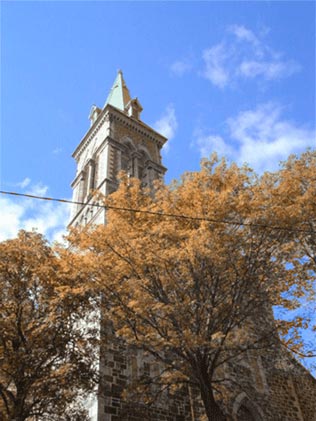
| 6. Here's the final result. Quick and easy eh! |
|
Her
Summer turns to autumn blending styles
Added:Nov 30, 2004 Rating:
 Level: Beginner Software:
Photoshop
Level: Beginner Software:
Photoshop
Level: Beginner Software:
Photoshop
