| 1.
Here's a simple trick to create Outlined/Border Text. First, select the 'Type Tool (T)' on the Tool Bar, and click and type the necessary text onto the canvas. |
|
 |
|
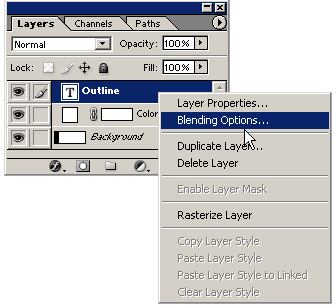
| 2. Next in the Layers Palette, right click on the new
Text Type Layer, and from the menu list, choose 'Blending Options'. |
 |
|
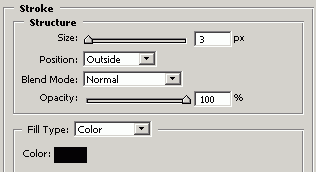
| 3. From the Blending Options Layer Style Panel,
all I selected was the 'Stroke' option. Select from the options I have captured to the right.(Color= #000000 [Black]) Then choose OK. |
|
 |
|
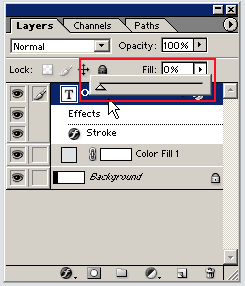
| 4. Back to the 'Layers Palette', set the 'Fill' Opacity
level to 0% as I have captured. (Drag the slider to the far left, as I have boxed in red.) Note: The Opacity Option sets the Master opacity for the layer. Simply meaning, it applies opacity to the layer and all underlying Blending Modes & Styles. The Fill Option sets the Interior opacity for the layer. Simply meaning, it applies opacity to the master layer only, ignoring underlying Blending Modes & Styles. |
|
 |
|
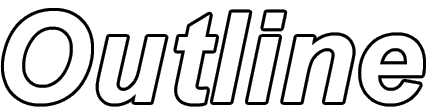
| 5. So by using the Fill option and a simple 'Stroke' Style, its easy to create Outlined text. |
|
 |
Her
Outline Text
Added:Dec 01, 2004 Rating:


 Level: Beginner Software:
Photoshop
Level: Beginner Software:
Photoshop
Level: Beginner Software:
Photoshop
