| Underwater Scene with Gradients |
|
Here's a detailed look to help simulate underwater scenes.
I first began with a 500x500 size document preset, set the foreground color to a shade of blue (I used #1680D1) and the background color to a dark blue (I used #0C1B6C).
Create a new empty Layer (Shift + Ctrl + N (Mac: Shift + Command + N), just above the default document background Layer.
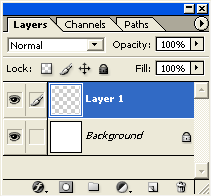
Next, select the 'Gradient Tool (G)'
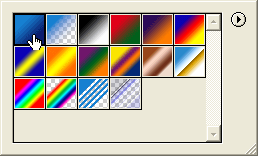
Also, on the Options Bar choose the 'Linear Gradient' style Next, still with the 'Layer 1' and the 'Gradient Tool (G)' active, start the gradient transitions roughly just above center point with a click and drag action.
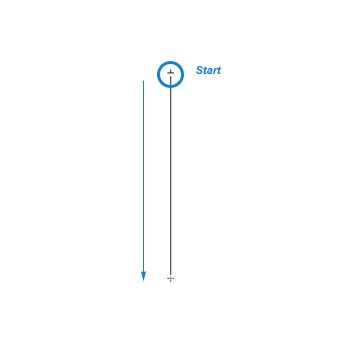 To produce a similar result as below.

Create another new empty Layer (Shift + Ctrl + N (Mac: Shift + Command + N), just above the 'Layer 1'.
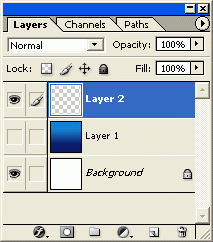
Next, select the 'Gradient Tool (G)' As before up on the Options Bar for that particular tool, select the 'Gradient Preset Picker' to define the gradient to use for this next effect. I will use the 'Foreground to Transparent' preset as I have selected below (the first one).
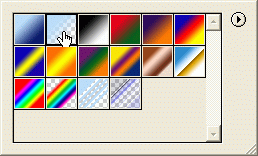
Also, on the Options Bar choose the 'Radial Gradient' style Next, still with the 'Layer 2' and the 'Gradient Tool (G)' active, start the gradient transition from the uppermost left hand corner as I have captured below.
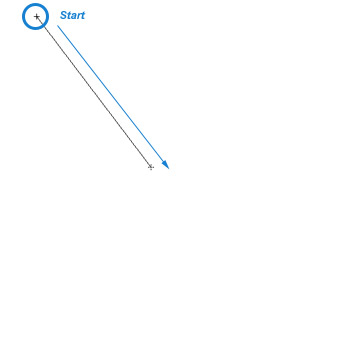 To produce the following result.
 Turn the visibility of 'Layer 1' back on.
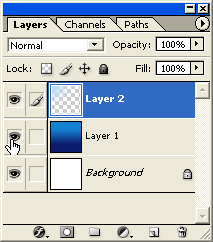
You should now have the below result with the above steps.
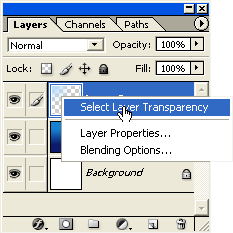
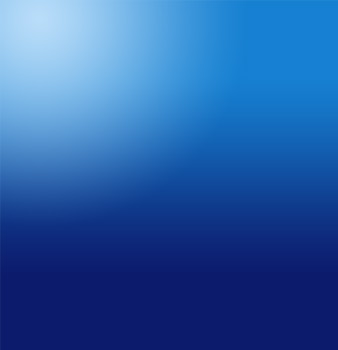 Next on with the rippled surface effect. With 'Layer 2' selected in the Layers Palette, right click (Mac: Control + Click) on the Layer and from the contextual menu choose 'Select Layer Transparency'.
 This will create a selection only around the pixel contents of this layer, as indicated by a marquee.
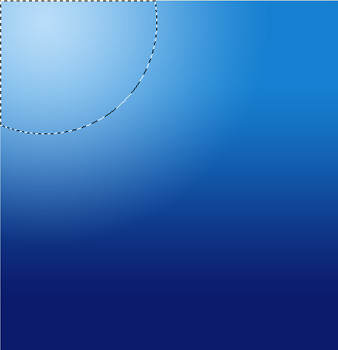
Next, for this selection apply 'Filter/Render/Clouds'. (Your foreground color should still be the #B9DDF9 light blue
& the background color the dark blue #0C1B6C, that was set earlier).
 Next, still on 'Layer 2', go 'Filter/Artistic/Plastic Wrap' and apply the below settings.
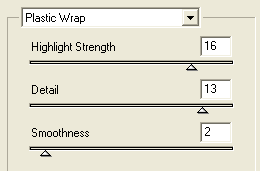 This will produce the following result.
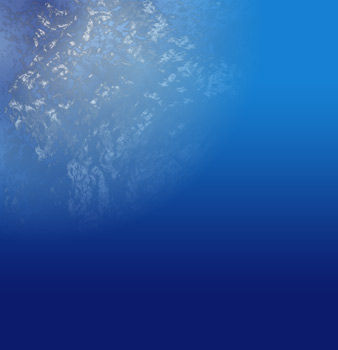 Starting to take effect now. Let's apply some depth to the surface area.
Still on 'Layer 2', Ctrl + T (Mac: Command + T) to activate the Free Transform Tool for this Layer.
I then duplicated 'Layer 2' and set its Blend Mode to 'Linear Light' and dropped it's Opacity level down to about 53%.
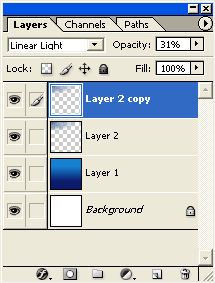 To produce the following result.
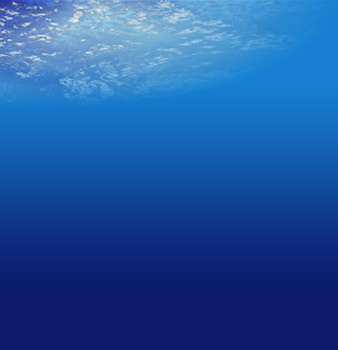 Next, lets apply a sunbeam affect coming from above the surface to a short distance below.
Create another new empty Layer (Shift + Ctrl + N (Mac: Shift + Command + N), just above the 'Layer 2'.
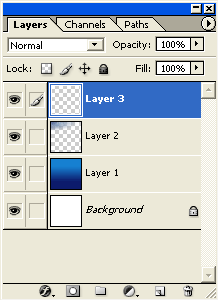
Next, select the 'Gradient Tool (G)' As before up on the Options Bar for that particular tool, select the 'Gradient Preset Picker' to define the gradient to use for this next effect. I will use the 'Foreground to Transparent' preset as I have selected below (the first one).
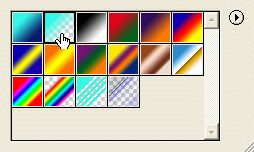
Also, on the Options Bar choose the 'Radial Gradient' style Next, still with the 'Layer 3' and the 'Gradient Tool (G)' active, start the gradient transition around the area that I have captured below.
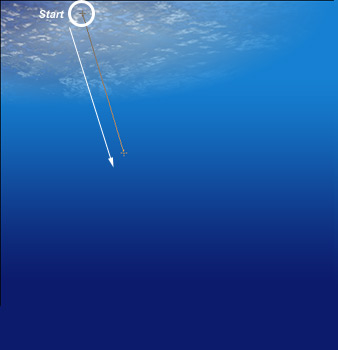 This will produce the following result.
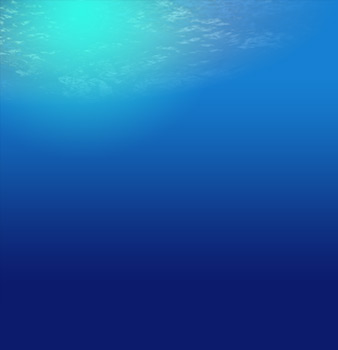 I then set that Layers Blending Mode to Overlay and bumped down its Opacity Level, as indicated below.
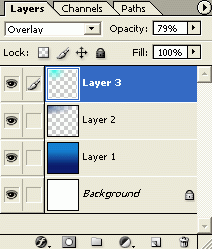 To produce this softened affect.
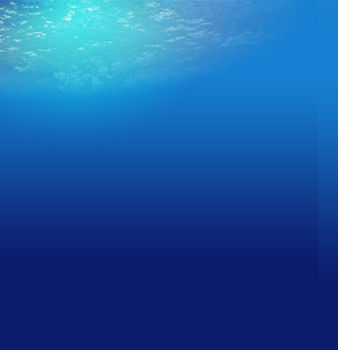
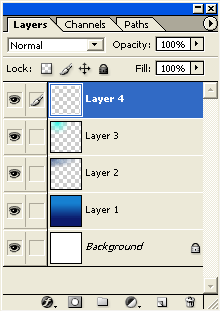
Finally, create another new empty Layer (Shift + Ctrl + N (Mac: Shift + Command + N), just above the 'Layer 3'.
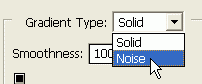
Next, select the 'Gradient Tool (G)' This will bring up the 'Gradient Editor'. But within the 'Gradient Editor', change the 'Gradient Type to 'Noise'.
Then applied the below settings. Then OK.
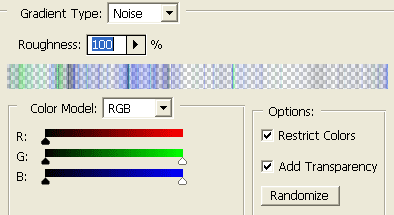 Once you have those similar settings, make sure 'Layer 4' is active, as well as, the 'Gradient Tool (G)' on the Toolbar, and up on the Options Bar for this tool, choose the 'Angle Gradient' style from the five styles.
 Then create a click and drag gradient transistion as in the area as I have captured below.
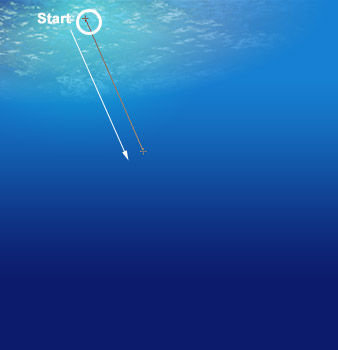 This will produce the following result.
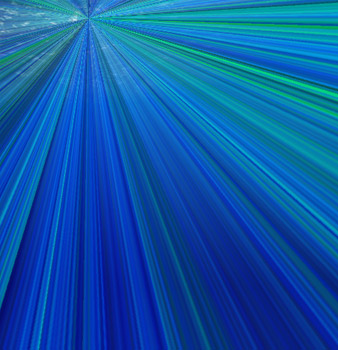 Finally, I set that Layers 'Blend Mode' to Screen and bumped dow the Opacity Level to 19%.
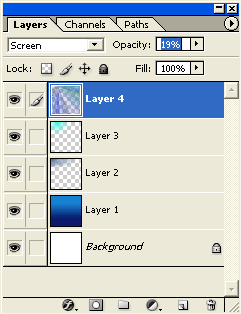 To produce this resulting image.
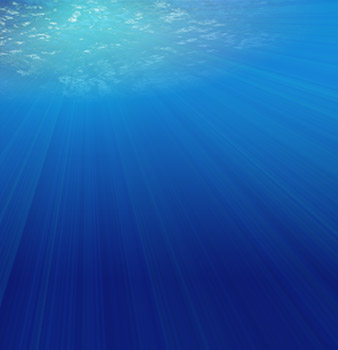 A little detailed and certainly can go a long way for enhancement, but in summary and looking at the last 'Layers Palette' screenshot above: Only four different layers utilizing 4 styles of gradient transitions. |
Her
Underwater Scene with Gradients
Added:Dec 02, 2004 Rating:

 Level: Experienced Software:
Photoshop
Level: Experienced Software:
Photoshop
Level: Experienced Software:
Photoshop  on the Toolbar.



 .
.
