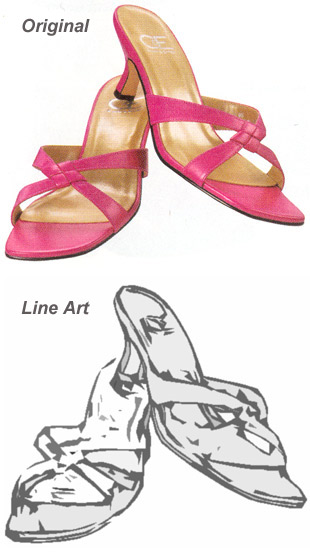
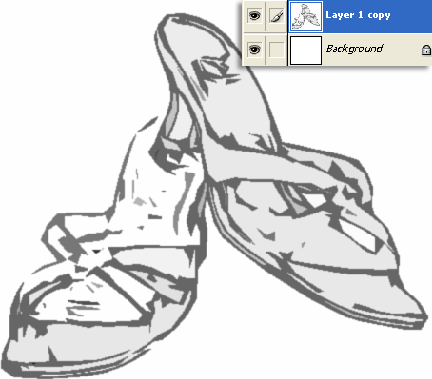
 To begin, have the target image layer selected, as I have captured below.
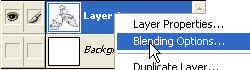
 Right click and choose 'Blending Options' on the target layer, as I have captured below.
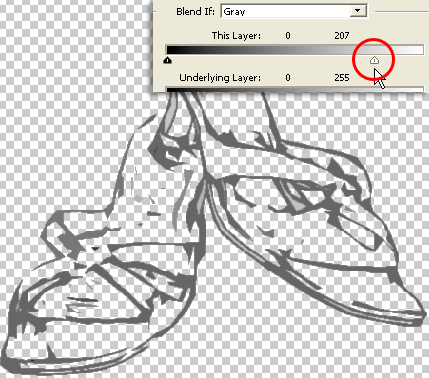
 In the main 'Blending Options' panel, in the 'Blend If' section adjust the white slider as I have captured below until you see the whites in the main document view disappear, then click OK to commit changes.
 Next, create a new empty layer above the original image layer as I have captured below.
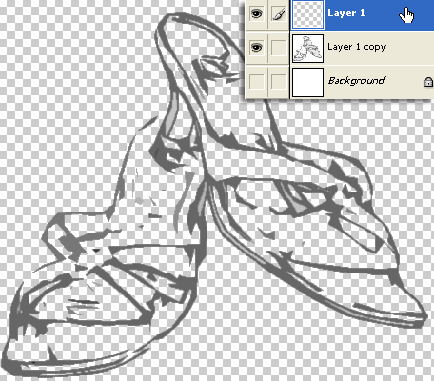
With that new empty layer active, hit the 'Ctrl + E' keys (Mac:Command + E) to merge it with the one below it.
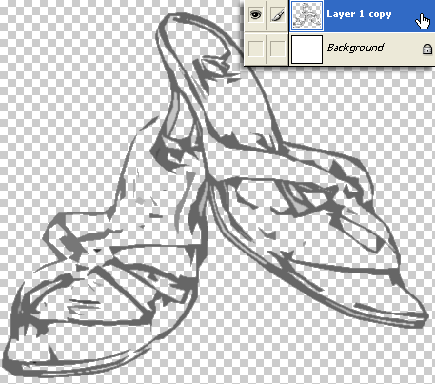 Next, Ctrl + click on the 'Layer1 copy' thumbnail (encircled in red) to activate a Selection around its contents.(As indicated by the marquee lines in the document view)
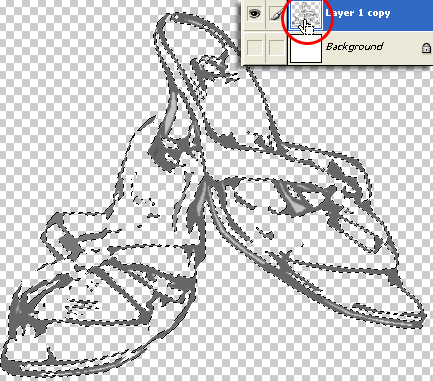 With the Selection still active, select the 'Marquee Tool (M)', then right+click on the document view and from the context menu list, choose 'Make Work Path' as I have captured below.
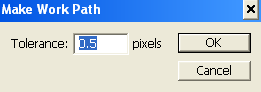
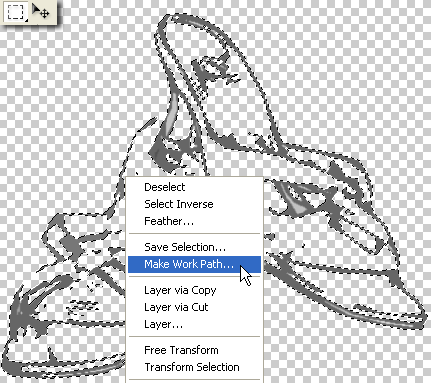 Keep the default settings of the new Work Path, as captured below.
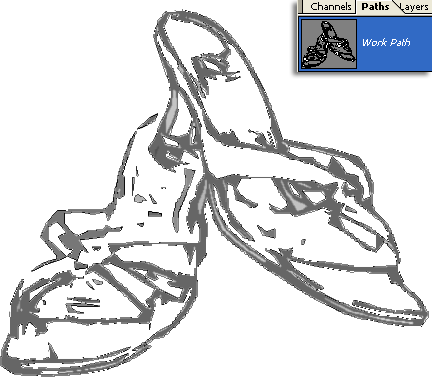
 Switch to the 'Paths' tab and notice the new Work Path you just created.
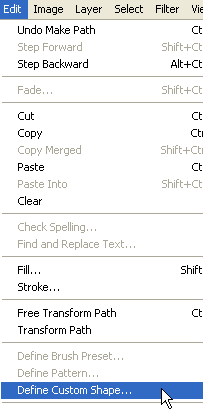
 Finally, lets save this new custom path as a Custom Shape. With the Path still active, go 'Edit/Define Custom Shape' towards the bottom of the contextual menu list, as I have captured.
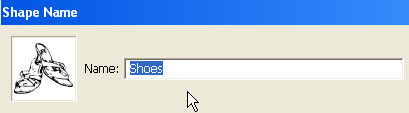
 At the next prompt, give the new custom shape a user friendly name.
 To locate the new custom Shape and ready for use, with the 'Custom Shape Tool' active on the toolbar, go to the Options Bar and select the Custom Shape Preset Picker (encased in blue) and the new shape will appear as the last one in the list. (encircled in red)
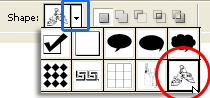
To use it, create a new layer and hide the originals (or start a new document altogether).
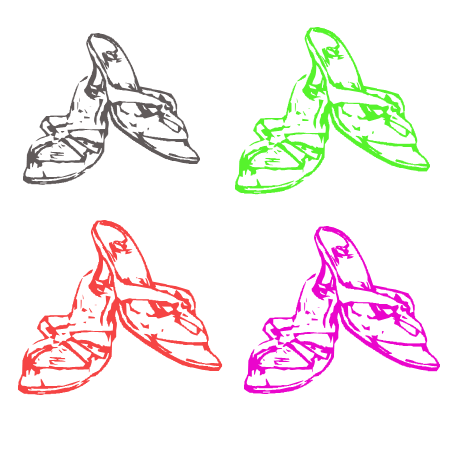
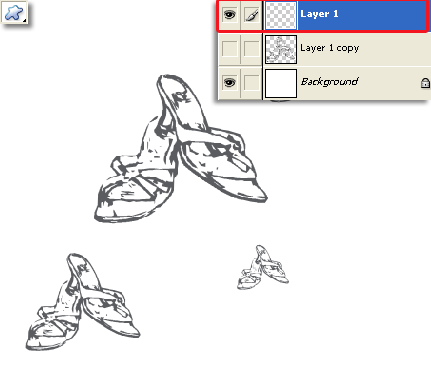 Also with the new custom shape, it's a breeze to create multiple versions without losing the original shape.
 |
Her
Creating Custom Shapes from Line Art
Added:Dec 03, 2004 Rating:


 Level: Beginner Software:
Photoshop
Level: Beginner Software:
Photoshop
Level: Beginner Software:
Photoshop
