1. Layer masking can be used to create advanced mixing effects without changing original images.
2. Open Photoshop. Open main image which will be used as a base.

3. Open another image to apply Layer Masking Techniques.
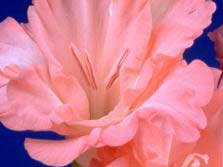
4. Drag this image on the main image using Move Tool. Keep this Layer selected.
5. Layer > Add Layer Mask > Reveal All
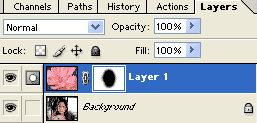
6. Select Brush Tool with soft brush. Make sure that black color is automatically selected as a foreground.
7. Start painting with Brush Tool in the center of an image.
8. Wherever you paint that area will get revealed.