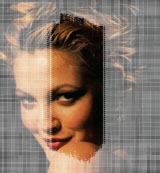
1. Open Photoshop. Open desired image.

2. Go to Channel Palette and Create New Channel. Fill the channel with white color.
3. Filter > Noise > Add Noise (Guassian, Monochromatic, Amount : 25)
4. Filter > Sketch> Water
Paper
(Fiber Length: 41, Brightness: 31, Contrast: 74)
5. Go to Layer Palette. Create New Layer.
6. Select > Load Selection (Alpha 1)
7. Fill the selection with white color using Alt + Del.
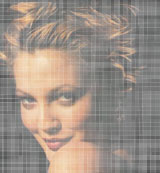
8. Select Eraser. Choose Chalk type of brush and erase the part of an image in such way that it should look as if the cloth portion is tear off.