

This tutorial is very easy and was actually fun to make. Its very basic!
* Goto File>New and make a 600x600 image.
1. Start out with one of your colors white and the other color black. Then goto Filter>Render>Clouds.
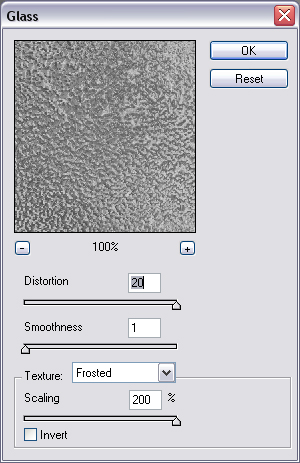
2. Then, goto Filter>Distort>Glass. Then set it up like this.
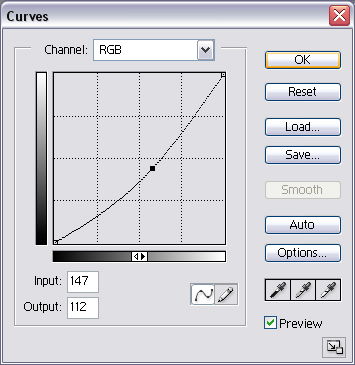
3. Now Since its a little light color, goto Image>Adjustments>Curves Darkening curves is downright and brighter is upperleft. Make it close to this though.
4. Now select the rectangle tool (U) <--- or hit U Its time to make your yellow line dashes to make it look like a real road! Make 1 (one) rectangle yellow dash 75 pixels in legnth,and about 10 pixels wide or 1/3 inch if you dont understand make that about 1 1/2 inches
*Goto View>Ruler to use them, they measure by pixels
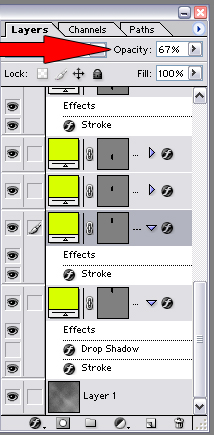
Since you want every yellow dash the same goto the layers screen on the right side and right click the shape, then click duplicate layer. But before doing so, goto Layer>Layer Style> Blending Options. Then add a 1pixel black stroke and a drop shadow. Now make about 6 yellow lines and space them out by 20 clicks with the move tool. Now make your shapes opacity 67% if you dont know where that is, its on the upper hand right corner on the layers screen
Now will will have something like this
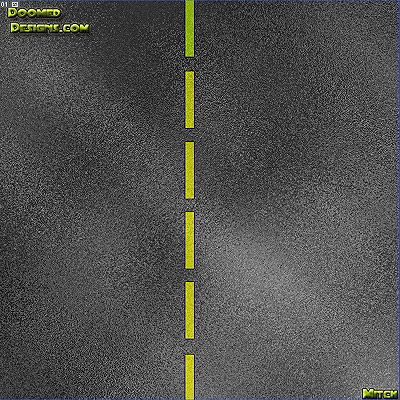
Thats it!! Hope you like it
