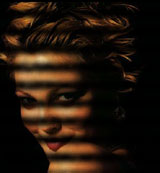
1. Open Photoshop.

2. Open desired image
3. Go to Channel Palette and Create New Channel. Fill the channel with white color.
4. Filter > Noise > Add Noise (Guassian, Monochromatic, Amount : 25)
5. Filter > Sketch > Halftone
Pattern
(Size: 4, Contrast:0, Pattern Type: line)
6. Go to Layer Palette. Create New Layer.
7. Select > Load Selection (Alpha 1)
8. Fill the selection with white color using Alt + Del.
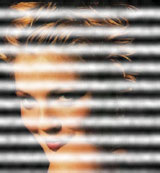
9. Or you can fill the Black color instead of White to get the effect of shadow of window on the face.