1. Try Complete Wood Texture Page before starting this tutorial.
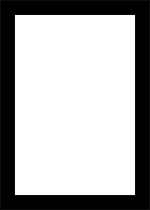
2. Create a new file and view Grids. Create a new layer. Using snap to Grids and Rectangular Marquee Tool, draw the rectangular selection. Fill it with black.
3. Create another rectangular selection inside the black rectangle and press Del.
4. You will get the basic frame work.
5. Create a wood texture and drag it over the layer of the frame. We have used the following Wood texture.

Layer > Group with Previous
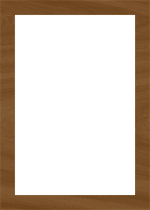
6. Merge down the texture layer with its base layer.
Select the texture layer. Go to the properties of layer palette and select Merge Down.
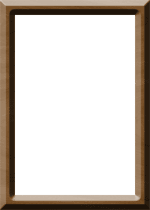
7. Use bevel effect on the frame.
Layer > Layer Style > Bevel & Emboss > Inner Bevel
Technique: Chisel Hard
Depth: 231%
Size: 5 px
8. Image > Adjust > Brightness/Contrast
Brightness: - 34
Contrast: + 49
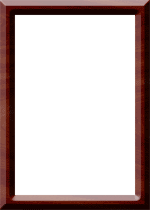
9. Drag the image on the frame. Drag the image layer below the frame layer.