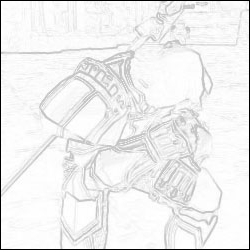
Step 1
Select part (Select Menu > Select All) of the image and copy it. Create a new image (With the image in the memory, Photoshop will create the fitting pixel width and height) and paste it in there. Make sure it is above a white background layer.
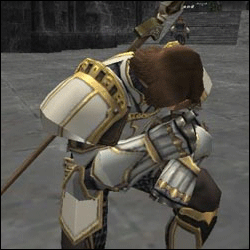
Step 2
Make the image black and white by going to the Desaturate tool. (Image Menu > Adjustments > Desaturate) Add the Find Edges filter (Filter Menu > Stylize > Find Edges) to make the image look more like a drawing.
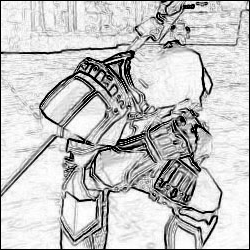
Step 3
Duplicate (Layer > Duplicate Layer) this layer and fill the background layer with white. Lastly set the opacity percentage on the duplicated layer to a level in which makes the image look less black, which would be around 50%.