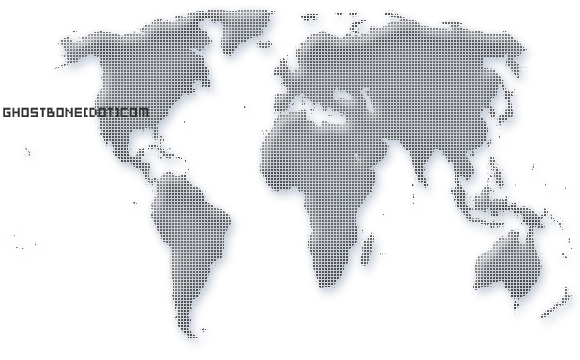
1. We are using this world image for this tutorial. You could use this technique on any image.
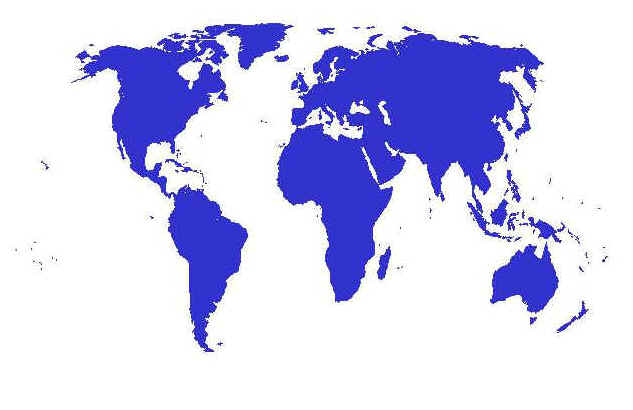
2. Open your image in photoshop.
Select the Magic Wand Tool. And select the whole image.
Change the color of your choice if you want to.
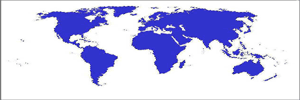
3. Now for the pattern you need create a new document (transparent background). Select the Pencil Tool.
Using the Pencil Tool, make a small 2x2 pixel box. We suggest you zoom in for the perfect pixel picture.
Now select the Rectangular Marquee Tool. Select the box plus 1 pixel on the right and 1 on the bottom. It should look like the picture below.
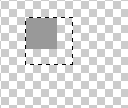
4. Click on Edit > Define Pattern, name it and save it.
You can now close that document and goto your original image. The whole
world picture should still be selected.
Create a new layer.
Click on Edit > Fill
Use: Pattern
Custom Pattern (Scroll down and select the pattern you made earlier).
Mode: Normal
Opacity: 100%
Click on Ok. Go and delete your original blue world and you should have something that looks like the image below.
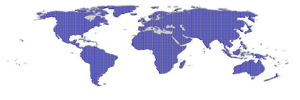
Pretty easy eh.
At the bottom we have made another image using the same image, technique
and a few more styles.
 Click to Enlarge |
