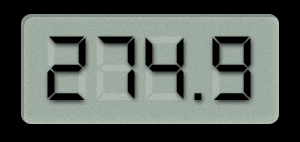
You'll learn how to make a realistic looking LCD screen in this tutorial.
1. New Document
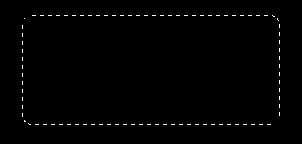
Make a new document. Fill it with black. Select the Custom Shape Tool.
Find the Rounded Rectangle Tool ( ).
Drag out how big you want the LCD screen to be, and then Right Click>Make
Selection.
).
Drag out how big you want the LCD screen to be, and then Right Click>Make
Selection.
2. Fill
Make a new layer. Then set your foreground color to [9EABA1] Fill the selection with that color.

3. Inner Glow
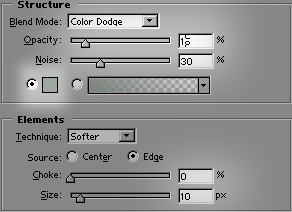
Select Blending Modes ( )
from the layer palette. Go to Inner Glow, and set it like this: The color
is the same as your foreground color. Don't press OK just yet.
)
from the layer palette. Go to Inner Glow, and set it like this: The color
is the same as your foreground color. Don't press OK just yet.
4. Inner Shadow
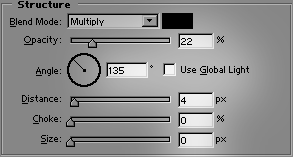
Then go to Inner Shadow.
5. Font
Time to add the font. We are using one called DS-Digital. Type your text in white, to the size you want, and then set the opacity to 15.
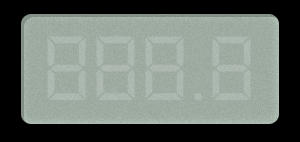
5. Real Text
Now, duplicate the text layer. Set the opacity to 100. Select all of it, and change the color to black. Then change the numbers to the numbers you want.
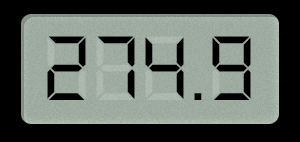
6. Drop Shadow
Finally, select the black text layer, and go to the Blending Options
()
on the layers palette. Select Drop Shadow.