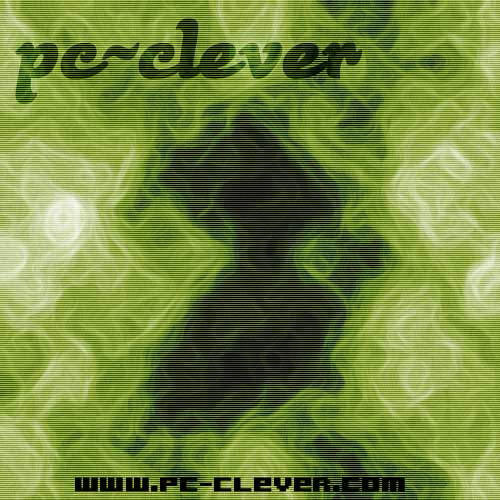
Step 1: make a new canvas. The size is up to you but you can make it 500x500 like mine
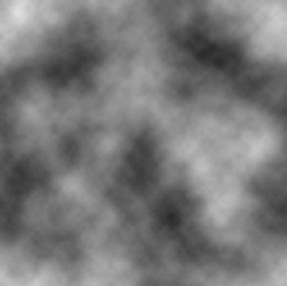
Step 2: go to filter>render>clouds. You should get something like the below picture. The good thing about the clouds filter is that it comes out different every time.
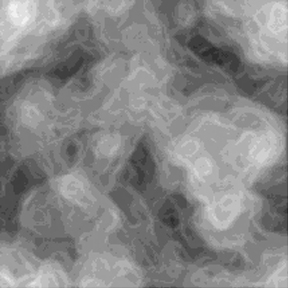
Step 3: go to filter>brush strokes>accented edges. Edge width:4 Edge brightness:38 Smootheness:15. You can play around with the settings if you don't like the way it came out or you can start again as the clouds filter always comes out differently. Your image should look similar to the one below.
Step 4 : now you can add the finishing touches. Go to image>adjustments>hue/saturation. Check the colorize button and play around with the colours till you find one that you like. Then you can add the other little touches of your choice.