Step 1 - Make a new square shaped canvas, I am using size 250 X 250 and then create a new layer
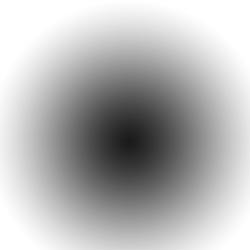
Step 2 - Select the gradient tool (or press 'g') and choose any colour, I am choosing the default for the sake of simplicity. Now choose 'Radial Gradient'. Start your line from the roughly the centre and then
drag it straight to the top of the canvas so your image should end up looking like this
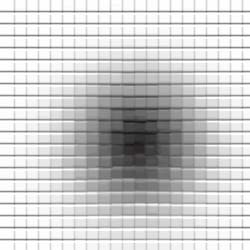
Step 3 - Now choose Filter > Texture > Patchwork, and choose square size 7, relief 6
so your image should end up looking like this
Step 4 - Now go to Filter > Distort > Twirl, and select 'angle -999' and you shold end up with your final image as shown below
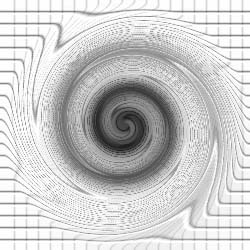
With some simple colour changes you can easily come up with something like i have below.