Step 1 - Make a new canvas size 300 X 300 and select an orange color - I have used color "#FF8400" as the foreground color. Click the Background to make the background your chosen color
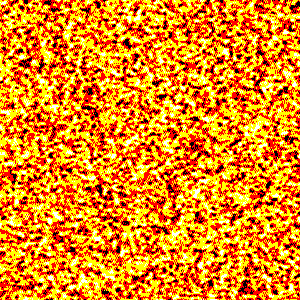
Step 2 - Go to Filter > Sketch > Mezzotint , and you will end up with a fire like background
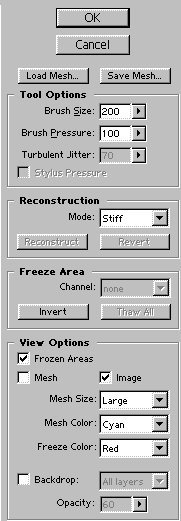
Step 3 - Go to Filter > Liquify and set the settings to the one below.
 /
/
Step 4 - Drag the cursor around the window, until you get something like this (hint: try dragging faster) and you should end up with something like this:

Step 5 - Now to get the final lava effect - press ok. When you press "OK", Photoshop will liquify it. Your result should now look something like this very "hot" image: