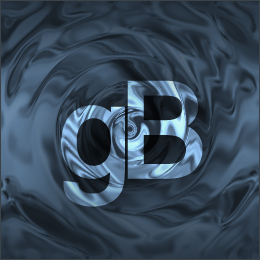
1. Start by creating a new RGB image. I used the dimensions of 288 x 288 in the example.
Make sure the background color is black and foreground is white. Next click on Filter > Render > Clouds, to create the base texture.
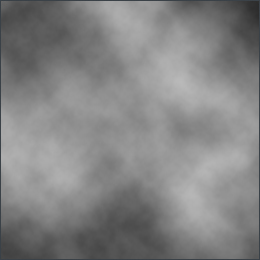
2. This is one of the best effects ever. Real smooth.
Click on Filter > Blur > Radial Blur and use these settings :
Amount: 38
Blur Method: Spin
Quality: Good
Next click on Filter > Blur > Gaussian Blur set the radius to 2, this would make it really smooth.
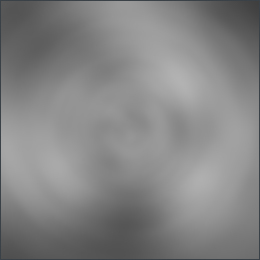
3. For the watery effect and to get the water smoothness click on Filter > Sketch > Bas Relief and and set it to:
Detail: 13
Smoothness: 10
Click on Filter > Sketch > Chrome and set it to:
Detail: 5
Smoothness: 2
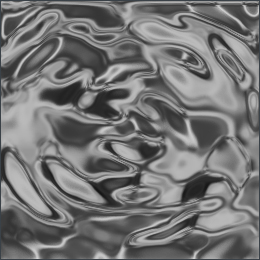
4. Now to fill the color in this piece.
Click on Image > Adjust > Hue/Saturation. Make sure the colorize box is checked. Select the color of your choice.
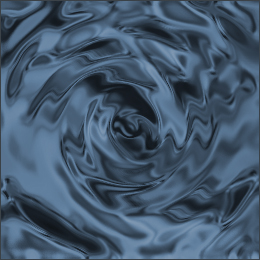
5. You dont have to do this, but this does make it look more realistic.
Firstly click on Layer > Flatten Image to flatten out the image.
Next, click on Filter > Other > v Offset.
Coordinates - Horizontal: 200, Vertical: 200.
To add the twirling effect to the image, click on, Filter > Distort > Twirl. Select the angle as 120.
And for the final effect, click on Filter > Distort > ZigZag ;
Change the values to the following:
Amount: 10
Ridges: 5
Pond Ripples.
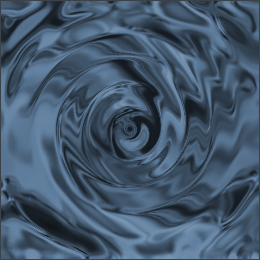
6.Once again, play around to improve. :)