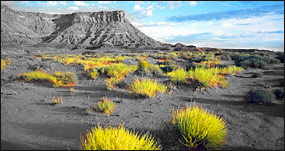
This will teach you how to turn your image to greyscale, then bring certain parts back to colour
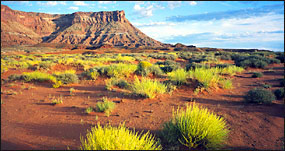
1. Start with any picture. If you like, use ours... A landscape of a desert.
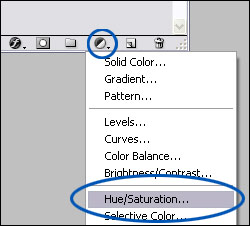
2. On your layers palate, click 'create new fill or adjustment layer' (see below) and click hue/saturation.
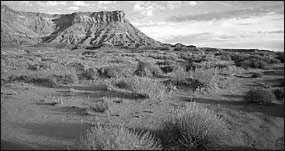
3. Now, drag the middle slider (saturation) all the way to the left hand side <== Which will make your picture go black and white.
4. Now, with your Eraser tool, erase anything that you want to
back in colour. You might be thinking... this doesn't make sense. But, you have
just added a mask, which means nothing is final.