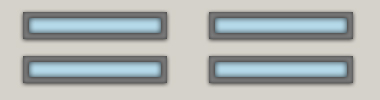
1) Make a new document, anysize doesn't matter. Press CNTRL+D to reset your pallete colors. Make your background any color. I used a light beige color.
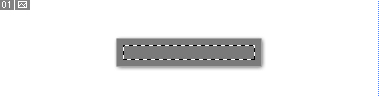
2) Make a NEW LAYER. Ok use the Rectangular Marque Tool and make a nice selection, about the size of a button, for example:
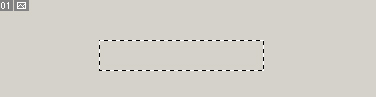
3) Now fill it in with a nice dark color, i used a dark grey:

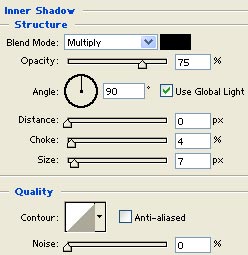
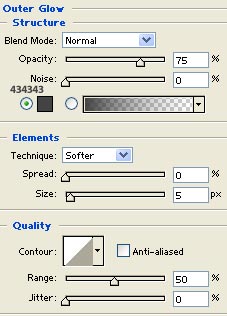
4) Now we want to add blending options to this layer. Right click the layer and go to Blending Options and apply all these settings:
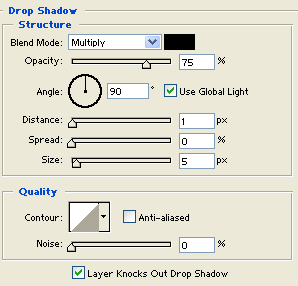
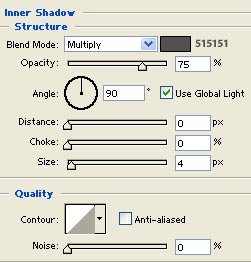
5) Now create a new layer and use the Rectangular Marque Tool once again.
Fill in the new selection on the new layer. I used a light beige for now. Ok now we got everything pretty much done, lets add some blending modes to the top layer and we are pretty much done. Apply these settings:
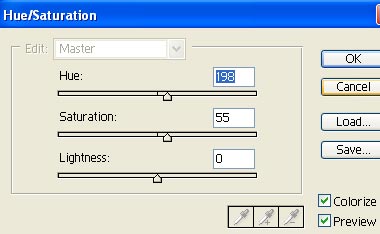
6) Now you can leave it like it is now or if you want we can try and make the button look more colorful. Do this by selecting the very top layer and press CNTRL+U. Now we can change the color, i used these settings:
Final: