1) Open Photoshop, press D to reset the palette colors.
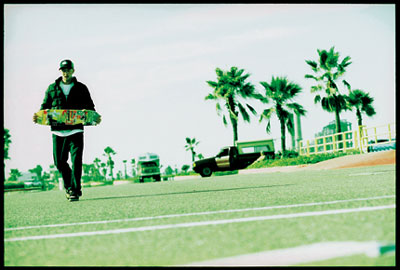
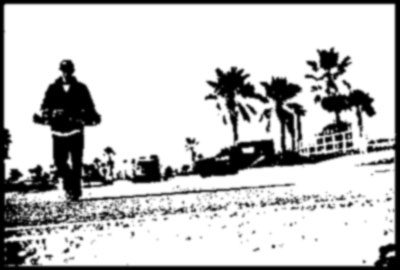
2) Ok start out with a image, any image can be used. I used the one below:
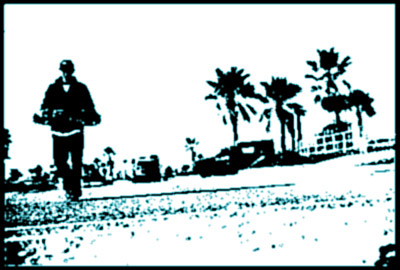
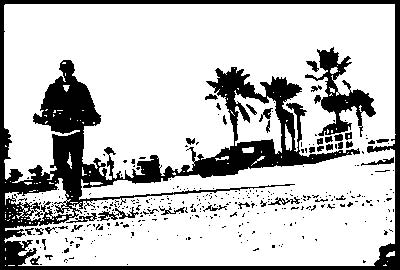
3) Apply Image>Adjustmensts>Threshold and set the marker to the right a bit so it looks similar to:
4) Now we want to smoothen things out, go to Filter>Blur>Gaussian Blur and set the blur to 1.0.
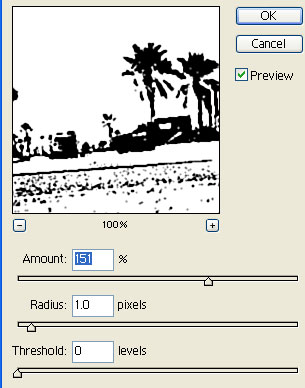
5) We need to bring back the edges just a bit so apply Filter>Sharpen>Unsharp Mask and use these settings:
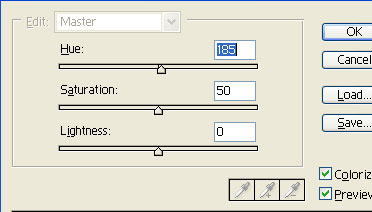
6) Apply some color, I used a soft blue tone. Press CNTRL+U.