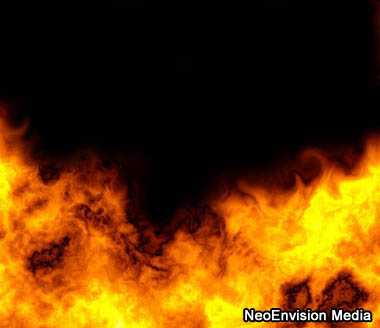
1. Create a new image, apply filter --> render ---> cloud
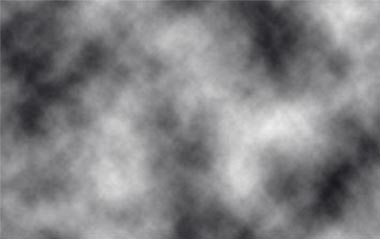
2. Apply filter ---> render ---> different cloud, ctrl + f to repeat this filter a few times, until you get something similar to fire
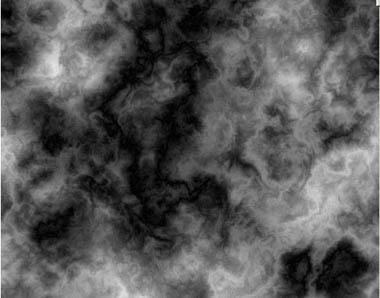
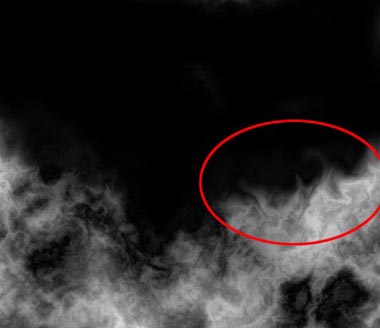
3. Use paint brush to paint half of it black, at the edge of the fire, you should set a lower pressure for the paint brush
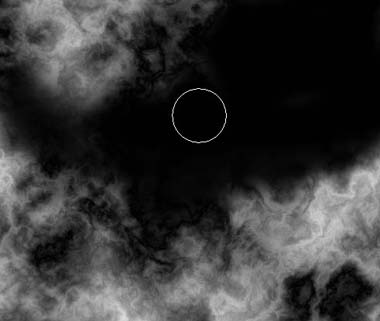
4. Now apply filter ---> liquidfy to make the flames look more realistic.
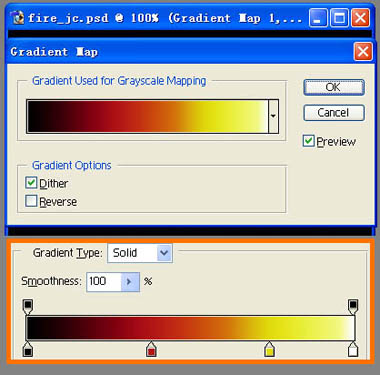
5. Execute image ---> adjustment ---> gradient map, adjust it to the same as shown
6. Here we go
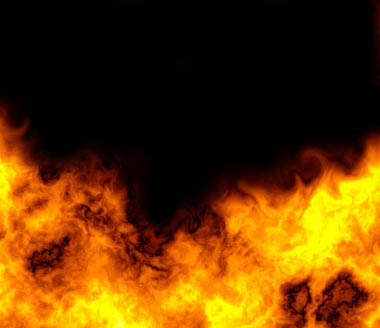
7. Now we can add some text on it to make it match your own needs.