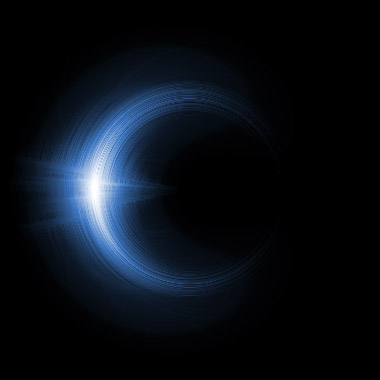
1) Make a new document, anysize doesn't matter. Now press "D" on your keyboard to reset the foreground and background colors to black and white. Make sure your background is BLACK.
2) Make a Lens Flare right in the middle of your canvas:
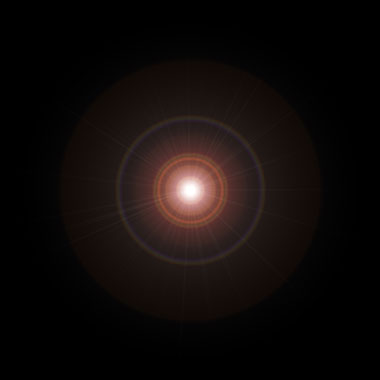
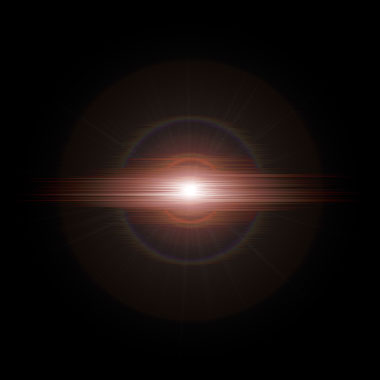
Now apply Filter>Stylize>Wind. Apply the wind effect from the left and from the right:
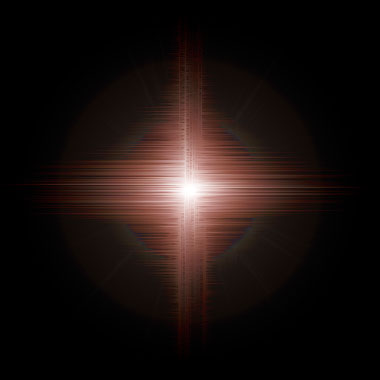
3) Flip the image so we can apply wind to the top and bottom. Go to Image>Rotate Canvas>Rotate 90 CW. Now apply Filter>Stylize>Wind from the left and the right.
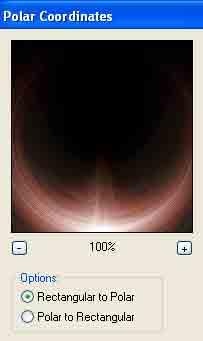
4) Apply Filter>Distort>Polar Coordinates with the settings below:
Rotate the Canvas again so we get the halo facing from the left.
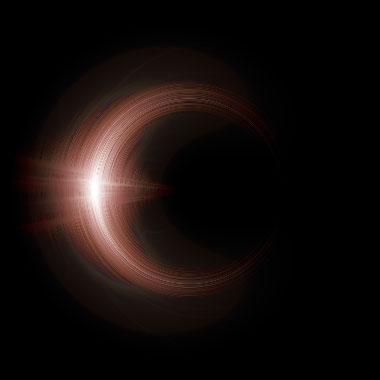
Add some color CNTRL+U: