1. Create a 120x80 file, RGB mode, background: Transparent, create a new layer, fill with white, create another new layer, drag a 40x40 circle selection, fill with #003366, seperate the circle from the middle

2. Drag a rectangle selection in the middle and fill it with #003366

3. merge the two layer, then CTRL+Click on the layer (in layer panel) to get the selection of the whole thing. then go to select---> modify---> contract, 5 pix. then go to select---> feather, 8pix, create a new layer, fill with #66CCFF, go to layer---> group with previous, move it down 10 pixels

4. select the part shown below on the layer with the darker shape.
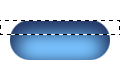
5. right click on selection and select copy via layer, drag the new layer that was created (above the selected layer) to the top of all layers. make sure this layer is selected, then select the part showned below
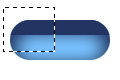
6. Move the part which is selected 5 pixels to the right, do the same thing on the right side, then move the whole thing down 3 pixels. (for better view, i filled this part with white, you dont have to do this)

7. CTRL+click on this layer (load selection of this white part) , create a new layer, fill selection with gradient tool, white for foreground and transparent (0% opacity) for background, drag from the top to bottom of the selection.

8. put text and drop shadow, here we go.