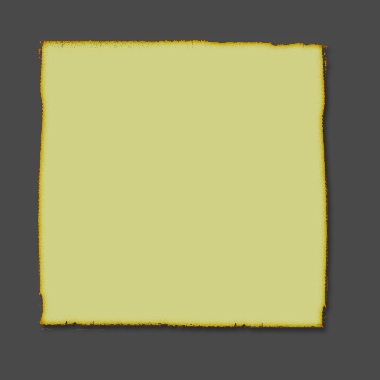
1) Make a 400x400 document. You can edit>fill the background layer to any colour you want, I suggest a moderately dark gray
2) Now make a rectangle selection, this will be your page, and will it with #C8C860 (or a good yellow of your choice)
3) Now Get some Brushes, www.spoono.com has some, and I am sad but this is sadly the key to the tutorials, after you get them, trim off the edges, so it looks something like this.
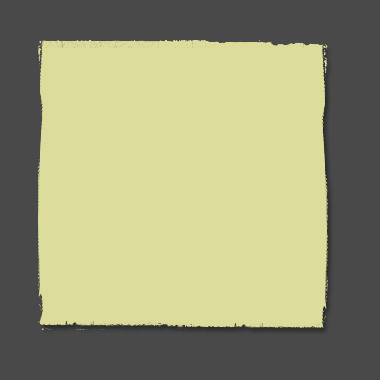
(note you might need to flip horizontally and vertically to get all the edges good, edit>transform)
4)
Now Duplicate Layer by Right Clicking on Layer, and Selecting Duplicate Layer. Make this Layer white by, going to image>adjustments>hue/saturation and raising brightness to 100%
Your layers should look like below.
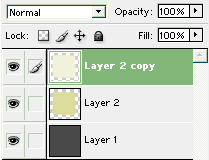
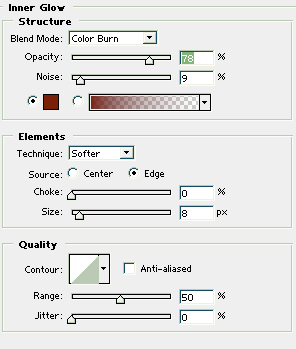
5) How we're going to add the last cool steps, add a inner glow to the white layer.
Click on the FX Icon below the layers, and add inner glow using these settings (may be changed for experimentation)
6) Now, change the layer blending mode to multiply (can be changed by selecting layer, and changing dropdown menu from 'normal' to 'multiply')
7) Add a drop Shadow effect using any settings you wish, for best results.
(select fx button below layers such as in step 5.
and you should come out with something like this: