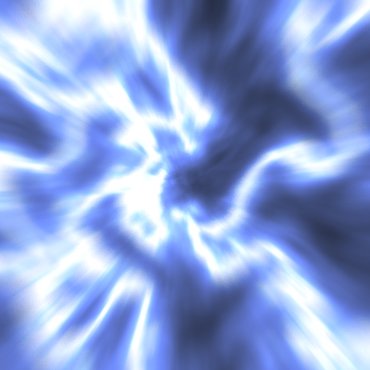
1) Make a 400x400 document. Now press "D" on your keyboard to reset the foreground and background colors to black and white. Make sure your background is BLACK.
2) Make a new Layer. Now apply Filter>Render>Clouds then Filter>Render>Difference Clouds.
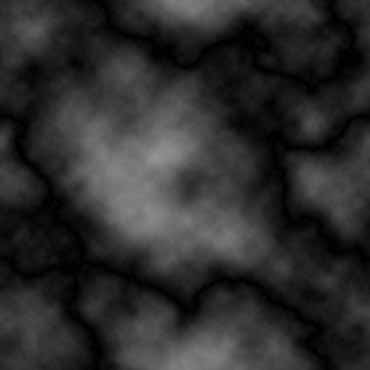
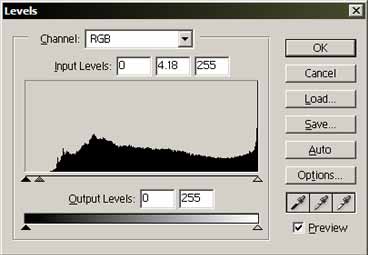
3) Now hit CTRL+L or Image>Adjustments>Levels. Use these settings.
Your image should look something like this, just not the same pattern.
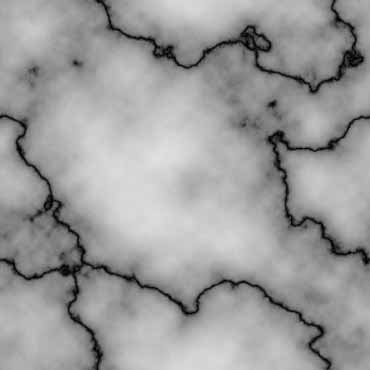
4) Now hit CTRL+I or Image>Adjustments>Invert. Your image should now be similar to this.
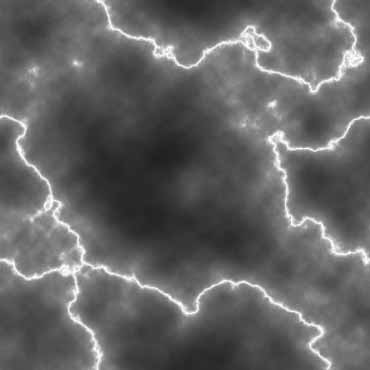
5) Now hit CTRL+U or Image>Adjustments>Hue/Saturation.
Use these settings.
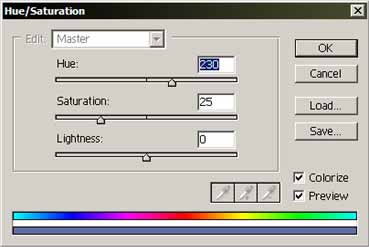
Your image should look something like this.
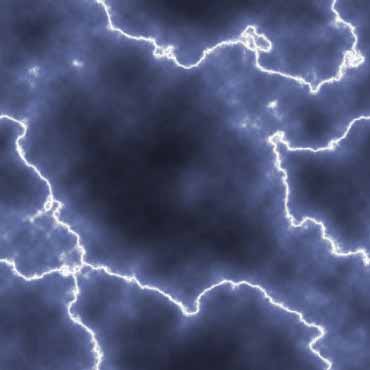
6) Now duplicate this layer Layers>Duplicate Layer. Change the new layers blending mode to Color Dodge.
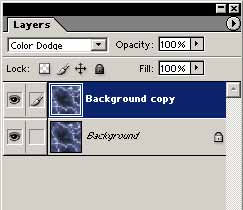
Your image should look something like this.
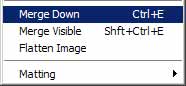
7) Now go to Layers>Merge Down to merge these two layers into one.
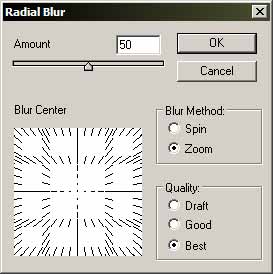
8) Now apply Filters>Blur>Radial Blur and use these settings.
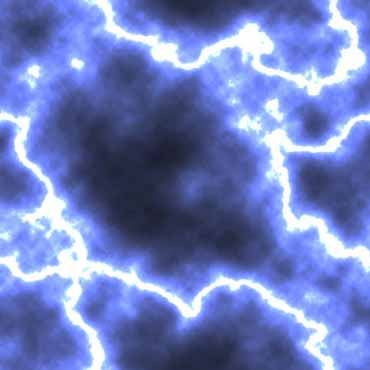
Now your done! Heres my final effect: