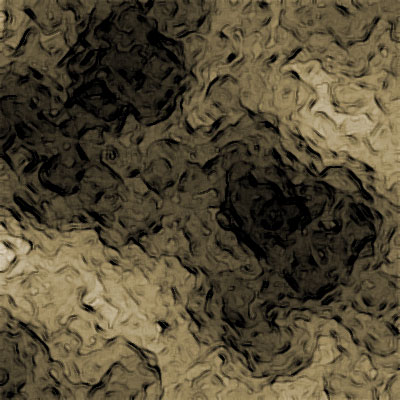
1) Make a 400x400 document. Now press "D" on your keyboard to reset the foreground and background colors to black and white. Make sure your background is BLACK.
2) Make a new Layer. Now apply Filter>Render>Clouds.
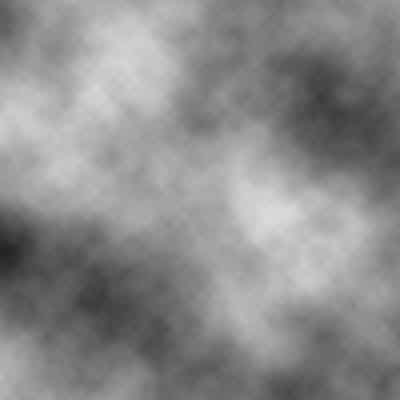
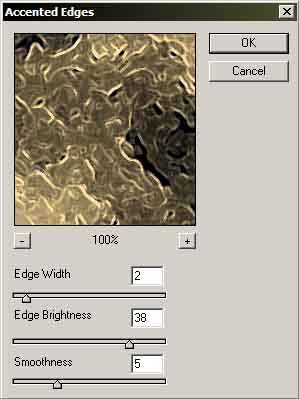
3) Now apply Filters>Brush Stroke>Accented Edges and use these settings. Repeat this step 2 more times to get the desired effect.
4) Your image should now look like this.
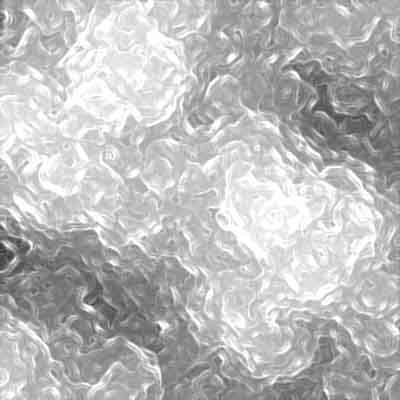
5) Now invert the image Image>Adjustments>Invert, or use the shortcut CTRL+I. Your image should now look like this.
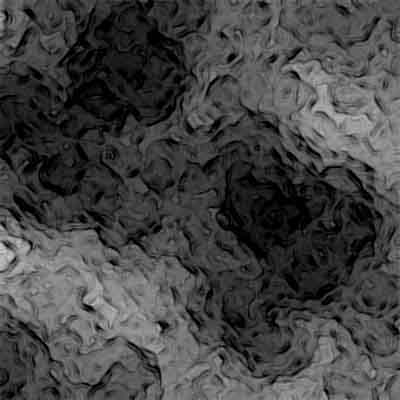
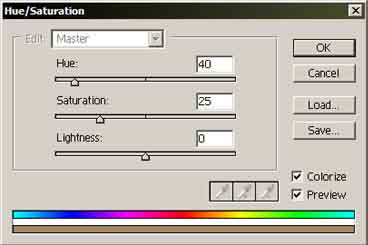
6) Apply add color Image>Adjustment>Hue/Saturation, or use the shortcut CTRL+U. Use these settings.
Now you are done. You can get a different pattern by redoing this tutorial, it will come out different everytime. The final image should look this.