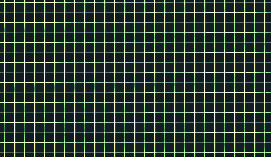
1) Make a 400x400 document. Now press "D" on your keyboard to reset the foreground and background colors to black and white. Make sure your background is BLACK.
2) Go to Filter>Render>Lens Flare and use these settings:
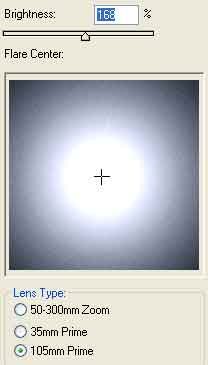
You want to keep the 105 Prime lens centered.
3) Make a new layer and apply some clouds. Filter>Render>Clouds and then apply Filter>Render>Difference Clouds and press CNTRL+F to generate the filter a couple times. Then set the Layer Blending Mode to Color Dodge:
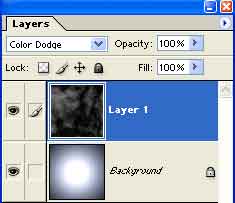
4) Now right click the cloud layer and select Duplicate. Apply these Hue Settings to the Layer 1 Copy (press CNTRL+U):
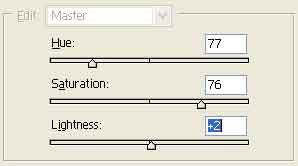
5) Now you want to select the Layer 1 layer in the Layers window and press CNTRL+E to emerge the Layer 1 and Background Layer together.
6) Repeat step 5 again but emerge Layer 1 copy with the Background Layer.
7) Apply Filter>Distort>Wave and use these following settings:
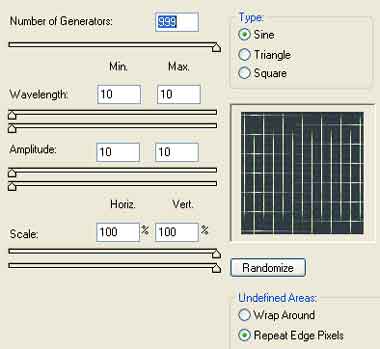
8) Duplicate the layer and go to Edit>Transform>Rotate90CW. Apply Overlay as the blending mode for the duplicated layer:
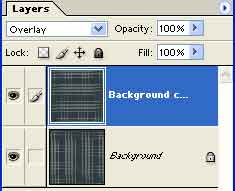
9)
There you go, now you can emerge the 2 layers together again. Select
the Rectangle Marque tool and select the area of the matrix grid you
would like to use. Copy it and paste it into a opened PSD file. Hope
you enjoyed the tutorial!