1) Make a 400x400 document. Now press "D" on your keyboard to reset the foreground and background colors to black and white. Make sure your background is black.
2) Now apply Filter>Distort>Diffuse Glow and use these settings:
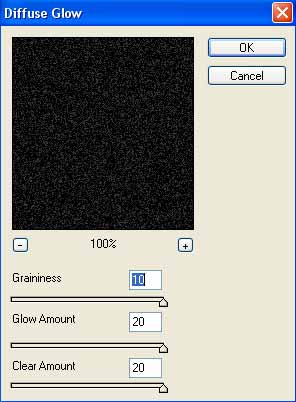
3) Now apply Filter>Blur>Radial Blur and use these settings:
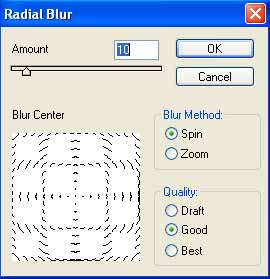
4) Apply Filter>Stylize>Glowing Edges and use these following settings:
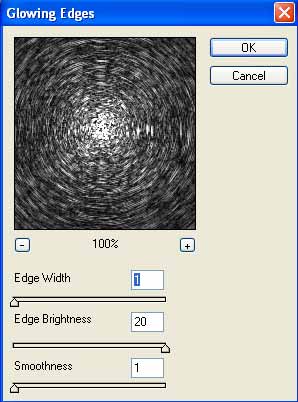
5) Apply Filter>Distort>ZigZag and use these settings aswell:
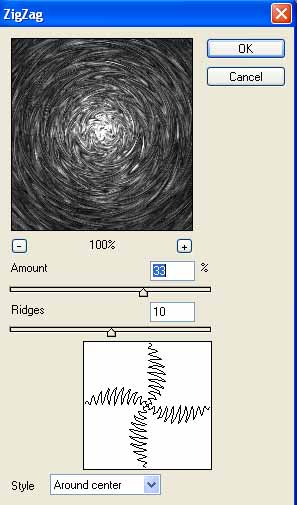
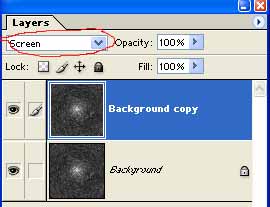
6) Right click the Background Layer and Duplicate it. Set Screen as the blending mode for the new duplicated layer:
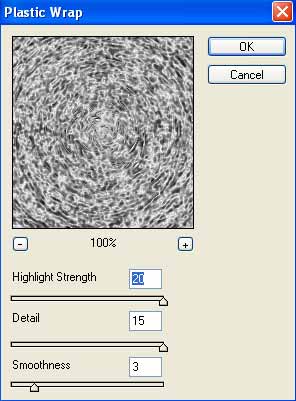
7) Apply Filter>Artistic>Plastic Wrap to the new duplicated layer. Use these settings:
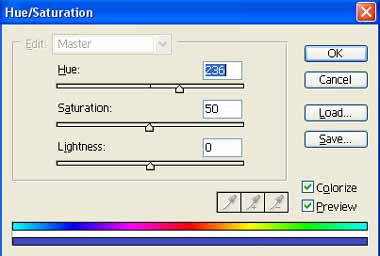
8) Apply select Background copy layer and press CNTRL+U and use these color settings:
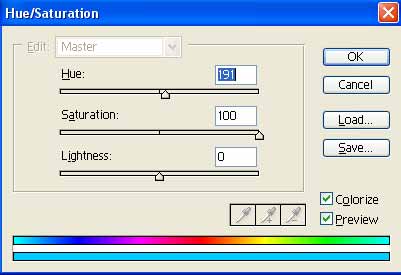
Now click the first Background layer and press CNTRL+U and apply these color settings:
Your final effect should look somewhat like mine below.