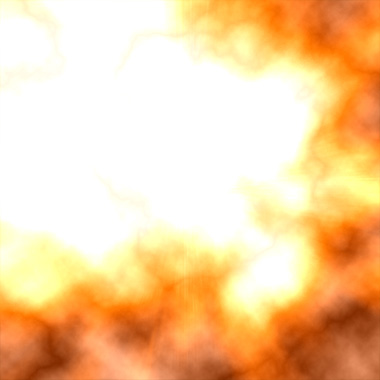
1) Make a 400x400 document. Now press "D" on your keyboard to reset the foreground and background colors to black and white. Go to Filter>Render>Difference Clouds and press CNTRL+F one time.
2) Now we want to apply some lens flares, go to Filter>Render>Lens Flare and make a pretty big 105 Prime lens flare like mine below, also make a couple other smaller ones:
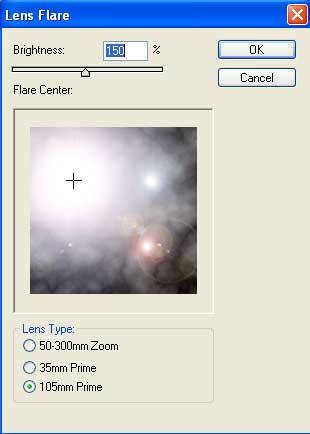
3) Apply Mosaic Filter>Pixelate>Mosaic, now apply water paper Filter>Sketch>Water Paper, use all default settings.
4) Apply Filter>Blur>Radial Blur and use these settings:
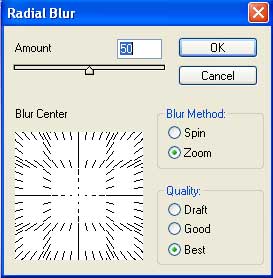
5) Now duplicate the layer and set the new duplicated to Screen:
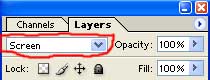
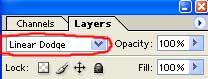
6) Create a new layer and apply Filter>Render>Clouds then apply Filter>Render>Difference Clouds. Now set the New Layer blending mode to Linear Dodge:
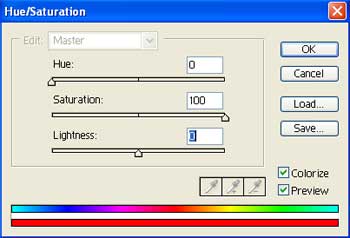
7) Now apply these Hue/Saturations to Background copy layer by pressing CNTRL+U:
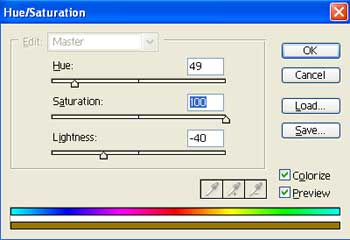
8) Now apply these Hue/Saturations to Background layer by pressing CNTRL+U:
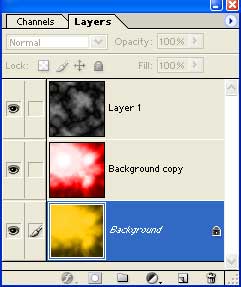
Your layers window should look like this:
You are done, heres the finished effect: