1) Make a new document around 400x400 or you can choose your own size, doesnt matter, just make it big! Now press 'D' to reset the pallete colours.
2) Now we add some clouds by going to Filter>Render>Clouds.
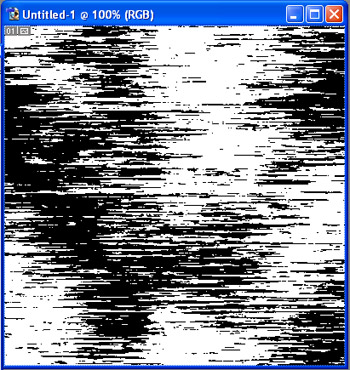
3) Now we want to add Mezzotint, do this by going to Filter>Pixelate>Mezzotint. Your image should now look similar to this:
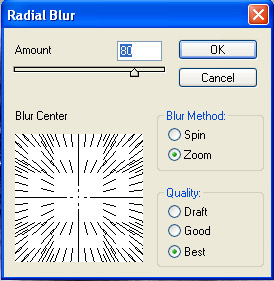
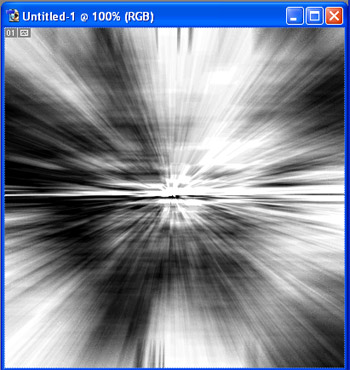
4) Now we add Radial Blur, this will make the image look better, aswell as add the warp speed effect. Filter>Blur>Radial Blur use these settings:
Your image should now look like this:
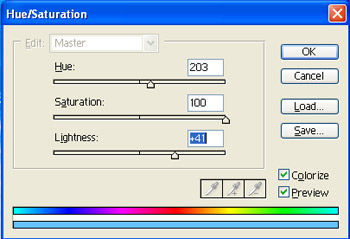
5) Now add color, do this quickly by pressing Cntrl+U, set your colors to what I have below or to your own style:
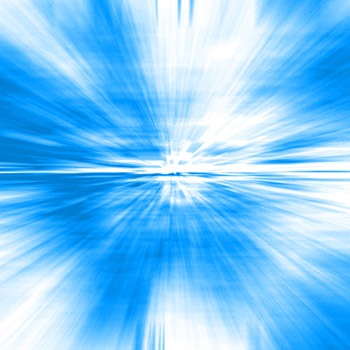
This is the finish effect!