Ever want to set your text on fire? Do it here fast and easy. Step-by-step instructions proceed...
1. Make a new image that is big enough to fit your text and fill it with black.
2. Select the Type Tool and type in your text. Make it big, betwen 30 and 50 pt.

3. Now, go to Layer>Rasterize>Text as shown in the image below.

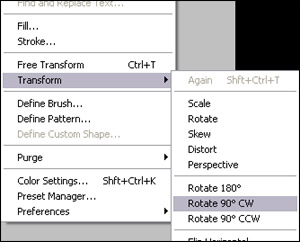
4. We want to rotate the text so it'll be vertical. Go to Edit>Transform>Rotate 90° CW.
5. Now, we want to apply a wind filter. Go to Filter>Stylize>Wind and apply wind from the left. Keep the other default settings. Hit Ctrl+F twice to reapply the wind filter two more times.
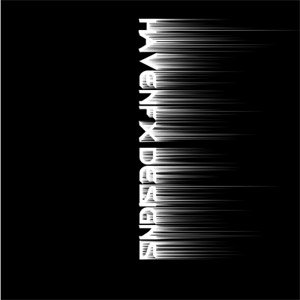
6. Rotate the image back to get it straight.

7. Apply a ripple filter through Filter>Distort>Ripple. Set the amount to around 60% and the size medium.

8. To hue the image in the next step, we want to flatten the image. Go to Layer>Flatten Image to do this.
9. Coloring is fun! Hue this image by hitting Ctrl+U or going to
Image>Adjustments>Hue and Saturation. Check the colorize box and
put in the following settings. Hue: 16 Saturation: 66 Lightness: 0

10. Finally, we want the text to be brighter. So go to
Image>Adjustments>Curves and apply the settings given in the
image as closely as possible.
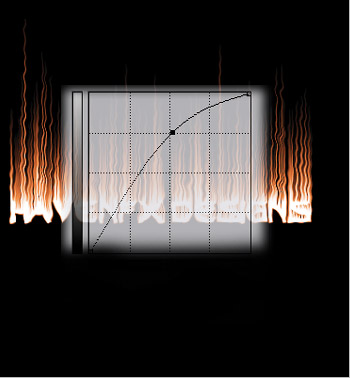
Here is my final image: