For this tutorial: Open a new image 350*350 pixels. Fill your background layer with white (standart)
1.) Add a new layer
2.) Make a rectangular selection, and fill it with black like this:

3.) Make a new layer and be sure that the selection is still selected.
4.) Fill the new layer with white and go to Filter > Blur > Gaussian Blur set the radius around 4, then you'll get something like this:
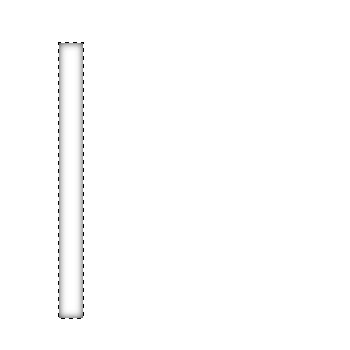
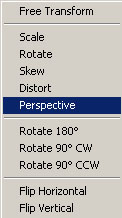
5.) Deselect the layer, and merge the black and the white layer. Then press CTRL + T to free transform, then press your right mouse button and select: Perspective (like this:)
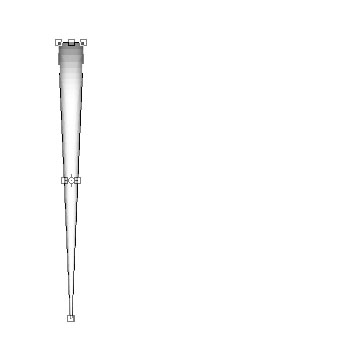
6.) Then set the outer corner squares in the midle, and press enter. Like this:
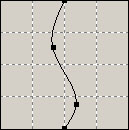
7.) Then go to Filter > Distort > Shear. and make a S sort of form (Like this:)
8.) Then go to Filter > Artistic > Plastic Wrap with these settings:
Highlight Strength: 9
Detail: 9
Smoothness: 2
9.) Then do Filter > Sharpen > Sharpen
10.) Then add a shadow by doing this Layer > Layer Style > Drop Shadow.
Whit these Settings:
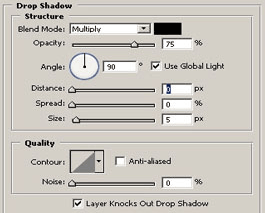 Click to enlarge |
12.) Make a new layer and set your foreground color to: #9F1010
13.) Add some blood (can use more brushes) and set the layer mode to Color Burn
14.) CTRL+Click on the tentacle layer to select the tentacle, Press CTRL+I To inverse the selection
15.) Delete the selection like this:
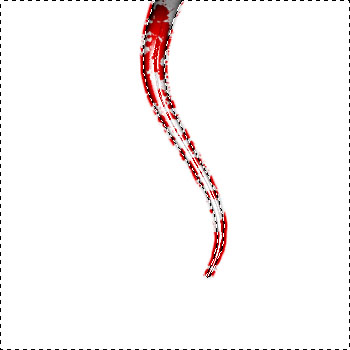
After that you are done. You allways can make the picture nicer
By doing something like this: