

This is a basic tutorial teaching you how to make an image move, but at the same time transform.
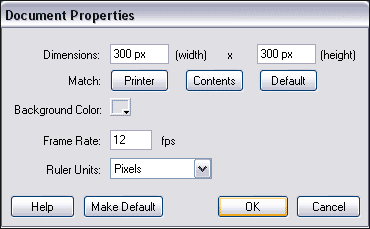
1. Make a new image, ours is 300 x 300 - with a the background - #D8E0E5
 |
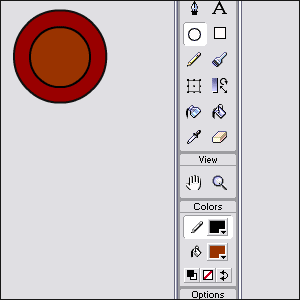
2. In frame one of layer 1, create any kind of shapes you like
 |
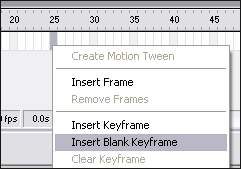
3. Right click frame 25 on the Timeline - and click Insert blank keyframe
 |
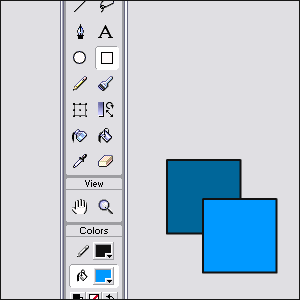
4. Now, Draw a different shape on this frame (don't worry
about your previous shape disappearing)
 |
5. Next, click on a frame in between frame 1 and 25. and in the properties panel (Windows > Properties - if its not there) and choose Tween: Shape
There we go! Now its a simple case of continuing adding
more frames and shapes and it'll look good in no time!
Download the .fla file for this tutorial!
