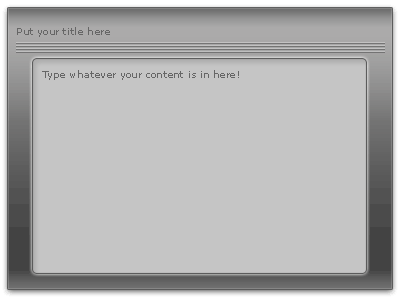
I know you've been to some great web design sites and seen some awesome content/navigation boxes. You've prolly wished you knew how to make those spectacular boxes. Well, yearn no more because here is the tutorial for you! Step-by-step instructions proceed...
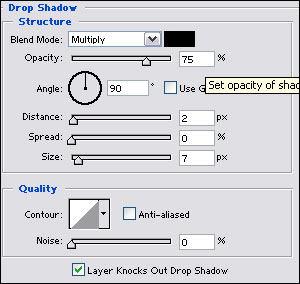
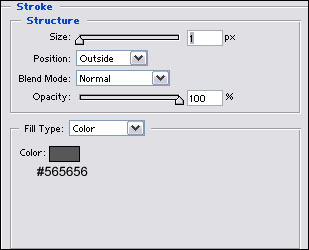
1) Let's open up a new image, 640x480. Make sure your backgroud is white just for visual purposes and then create a new layer. Select your rectangular marquee tool and select a square-ish shape a bit smaller (around 10px smaller) than the full image. Fill it in with any color that you like. Now, go to your Layer's Palette (Windows>Layers) and click the little 'f' near the bottom. In this tutorial, we'll have quite a few layer styles to apply so don't forget this procedure. Now, follow the guidelines displayed in the images below and then go to Step #2.
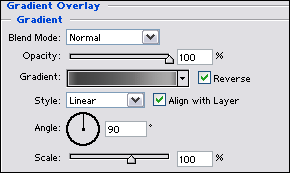
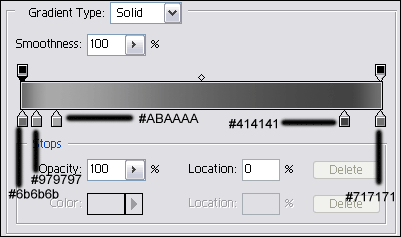
In the Gradient Overlay, click the color box and look below to apply a similar gradient.
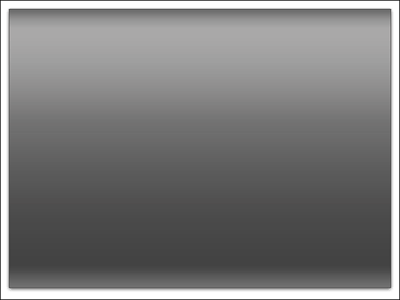
Now, you should have something like this:
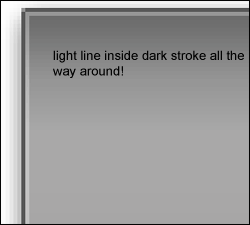
2) Create a new layer first (Ctrl+Shift+N). Then, select the Pencil
Tool and make sure the foreground color is white and the opacity of the
brush is around 30%. Holding Shift for straight lines, draw a square
with the pencil INSIDE the stroke. Make sure you DON'T overlap the
stroke anywhere or else it'll be brighter in that particular spot and
will stand out obnoxiously. Zoom in so you can view what you are doing
better.
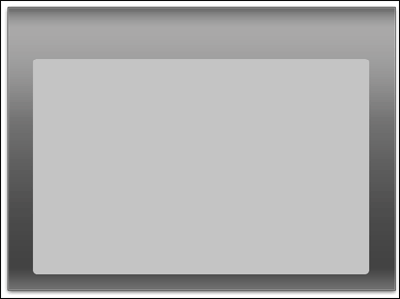
3) Make a new layer and then select the rounded rectangular SHAPE tool.
At the top in the tool options menu, set the radius to 6px and click
the Fill Pixels button (It's the third button in the group of three way
to the left). Set the color to #C5C5C5. Make a shape similar to the one
displayed below.
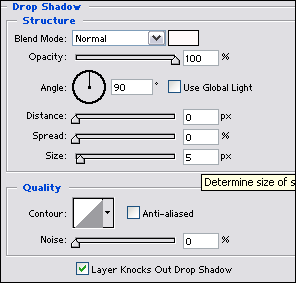
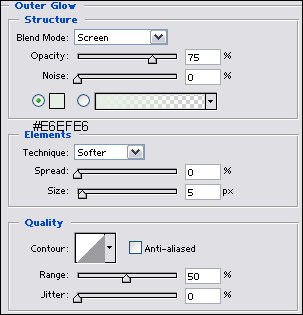
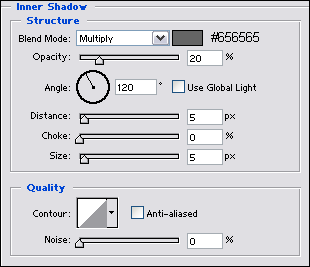
4) We will apply a series of layer styles on this layer now. Click the little 'f' and look to the images below to guide you.
5) I added a bit more to spice up my content box. You can do the same and experiment as you please.