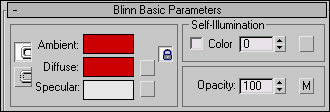
Here we will make a tentacle using 3DS Max. It is a bit long but you will make it through. Step-by-step instructions proceed..
1)Let's open up a new image, 400x400..
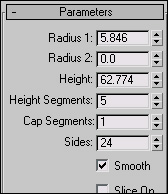
2)Reset the colors by pressing D or the picture in the corner.
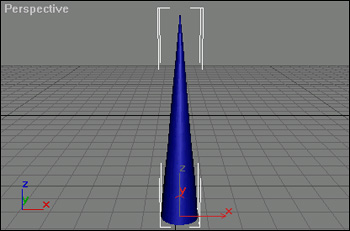
3)Make some text, I typed HavenFX, make it large about 32-48 pt, so we can see what we're working with.

4)Now duplicate the text layer by going to Layers>Duplicate Layer(this is the layer we are gonna be working with).
5)Rasterize the duplicated layer by going to Layers>Rasterize>Type
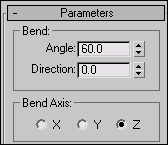
6)Now, on the duplicated layer, go to Edit>Tranform>Flip Vertical
and align the flipped text so that its touching the bottom of the
original text like this:
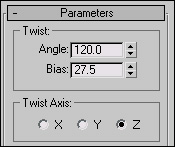
7)Time for some motion blur. Go to Filters>Blur>Motion Blur and set the distance to 5 and the angle to 0.
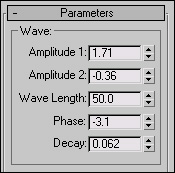

8)Next, go to Filters>Blur>Gaussian Blur and set the radius to 1.8 or so. Test it out to see what you like.
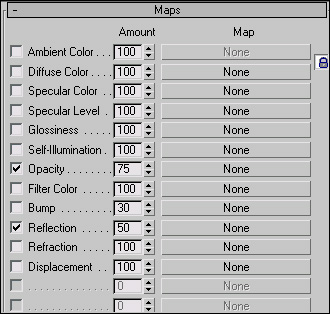
9)Now, this is where thing may get tricky. Go to Edit>Transform>Skew.
Now, adjust the bottom far right anchor to the right. Not too far and not too little. Play around with it and you can get it. Make you the bottom line is straight or it will look wierd.