

First type some text, use some kind of thick font. Rasterize your text layer.

Control+Click (Mac: Command+Click) on your text layer to make a selection.
Go to Select>Modify>Contract, enter 2pixels for the value and press OK.
Fill your selection with white color and then go to Filter>Blur>Guassian Blur and enter 2 for the value (note: blur value may depend on the text size).
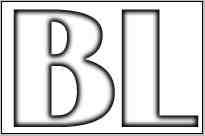
Lastly, go to Filter>Stylize>Emboss, enter 8 for the height and 90 for Amount %.
As you can see this last step give you that cool beveling look :).
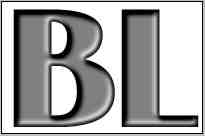
You may want to colorize your text without affecting or merging your layers. To do so, to to Layer>New Adjustment Layer>Hue/Saturation. Check the colorize box and adjust hue/saturation sliders to get the color you want.
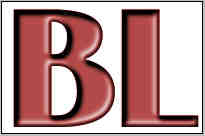
Extra:
You can also achieve all kinds of good beveling effects starting from step 2. You may go to Layer>Layer Style>Bevel and Emboss and experiment with all kinds of beveling techniques and options, have fun!
