1. Open Corel DRAW. Select text tool and type the text
preferably using thick font. We have used Impact.
Note: It is expected that you have finished with the beginners projects
when you start with intermediate, as we do not repeat the small instructions.

2. Select Interactive Contour Tool from the flyout menu from the tool box. Its 10th from the top.

3. Create the Contour effect using Interactive Contour Tool. Drag it over the text. Keep the text selected. Using following properties edit the effect properly. Remember to use Inside Contour.

4. You will get following effect. keep the text selected.

5. Open fountain Fill window. Change the angle to 90. Click on the step icon to select it and add 2 for the steps. Choose the desired colors.
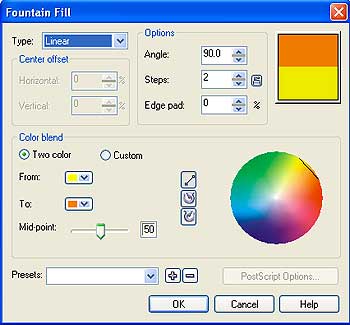
6. Click OK to get the following effect.