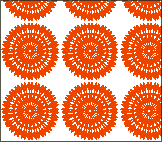
1. Open Corel DRAW. Create some design you want to use
for Two Color Pattern. Use black & White colors.
2. Tools > Create > Pattern
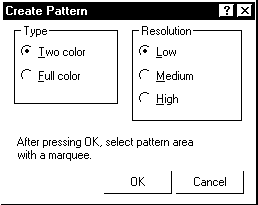
Create Pattern Dialog box will be displayed. Select Two Color. Click OK.
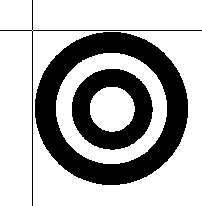
3. Cross cursor is displayed on the screen called Marquee. Drag it around the design as follows.
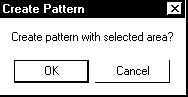
4. Click OK for the following dialog box.
5. Draw rectangle or any shape to fill the pattern. Keep
it selected.
It is a simple test to check the pattern whether it is created properly
or not.
6. Select Fill Tool and Pattern Fill Dialog. Select 2-Color
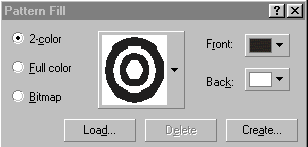
7. Click OK.

8. The Procedure is similar for full color pattern with little difference.
9. Create a design for full color pattern use any colors.

10. Follow the steps from 2 - 4
11. Full color pattern has to be saved in 'Pattern' folder
of Corel DRAW.
The dialog box for saving the pattern will get displayed. Name the pattern
and save it.
12. Follow the steps from 5 - 7