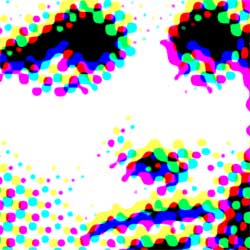
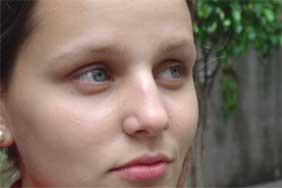
This works best on photos that have strong contrast between the forground and background. Start by finding a photo, or just download this one.
(Photo provided by Stock.XCHNG)
Open your photo in photoshop and apply the Halftone Pattern filter.
(Filter > Sketch > Halftone Pattern... )
Set your size to 10 and contrast to 48.
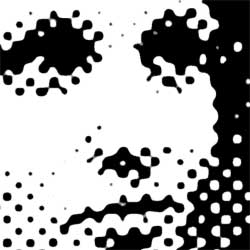
Once you've hit OK, Invert the layer and it should now look something like this.
(Image > Adjustments > Invert )
Make two copies of this layer so that you have a total of three. We're going to adjust the hue/saturation of all three layers in the next step.
(Image > Adjustments > Hue/Saturation... )
Adjust the Hue/Saturation on your layers using these settings:
Top Layer:
Hue: 180 / Sat: 100 / Light: 50 / Colorize: Check
Middle Layer:
Hue: 320 / Sat: 100 / Light: 50 / Colorize: Check
Bottom Layer:
Hue: 60 / Sat: 100 / Light: 50 / Colorize: Check
Set the top two layers' mode to "Darken" (Located at the top of
your layers pallette) and finally, move the top two layers a bit to offset
the different colors. You're done!