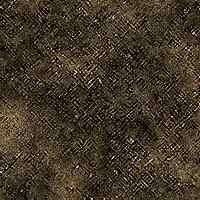
Learn how to create a great texture that looks old and beat up. It's a great alternative to rust.
1.
Create a new layer and set its Blend Mode to Luminosity.
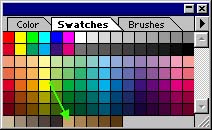
Press 'D,' then 'X,' then choose this color on your default swatches. (refer to image)
Go Filter>Render>Clouds until you get something you like.
Apply an Unsharp Mask by going Filter>Sharpen>Unsharp Mask with these settings:
Amount: 500
Radius: 7.2
Threshold: 0
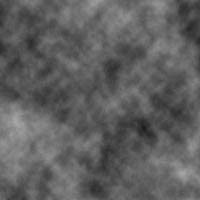
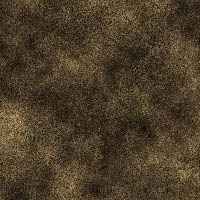
2. Create a new layer, set its Blending Mode to Hard Light, then render clouds again until you get something you like.
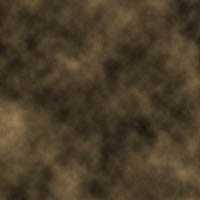
3. Add some noise by going Filter>Noise>Add Noise with Mono checked and within the range of 20-25.
4.
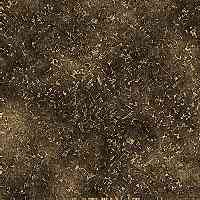
Now go back to the layer that's Blending mode is set to Luminosity,
make sure to click it so it's active, then go Filter>Artistic>Plastic Wrap to apply a plastic wrap filter with these settings:
Highlight Strength: 20
Detail: 15
Smoothness: 2
Now apply Filter>Sharpen>Sharpen Edges 2 times.
5.
This is optional, but it gives an added look to the texture. Apply the Filter>Brush Strokes>Crosshatch filter with settings:
Stroke Length: 5
Sharpness: 6
Strength: 1
And you are done.