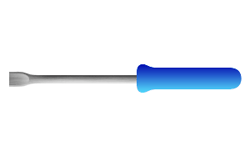
Need to screw something down? Create your own screwdriver!
1. Start off by creating a new layer and create the shape that you see using the Rectangular Marquee Tool.
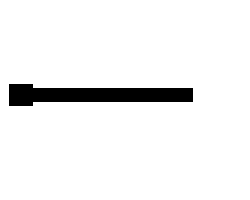
2. Ctrl+click (Mac: Command+click) the layer you are working on to load it as a selection. Then, create a new channel in the Channels Palette. Fill the selection with white. Go Filter>Blur>Gaussian Blur to soften the shape and hit Ctrl+L (Command+L) and bring the left and right sliders toward the middle so you get a smooth rounded shape. Ctrl+click (Command+click) your channel to make it a selection, go back to the Layers Palette, and create a new layer. Fill your new selection with black color. You should have something like what I have. Delete the first layer that you created with your original shape.
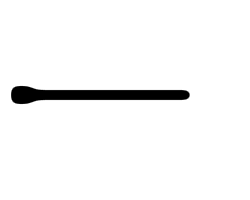
3. Create some guides like I did on the image by hitting Ctrl+R (Command+R) to bring up the rulers and then clicking and dragging from the rulers onto your image. You want the end of the tip of you screwdriver to have a straight edge, so using the Rectangular Marquee Tool, create a selection using your guides, and fill it with black. It should look something like I have. Also, hide your guides by hitting Ctrl+; (Command+;), we will need them again in a bit.
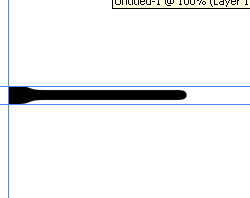
4. Create a new layer. Load the currect shape as a selection as we did before. Select the Gradient Tool and press 'D' to reset your colors. Apply a linear gradient on your selection. You should have something like me. Delete the layer with your black shape.
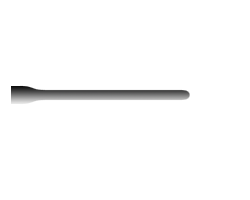
5. Unhide your guides, and move the top guide down 2px, and the bottom guide up 2px. Add another guide to about the position that I have it. Now, you guides have created a small rectangle. Using the Elliptical Marquee, start from the top left corner of the rectangle your guides have created, to the bottom right corner of you guides. Then, grab the Rectangular Marquee Tool, and holding Shift, drag from the top left corner of you guides, to the bottom middle of your ractangle created by the guides. You should have a selection like I have.
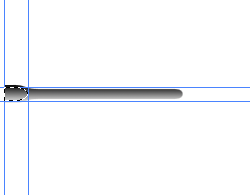
6. Create a new layer. Using the Gradient Tool, fill the selection with a gradient using the default colors (black and white). You should have something like I have. Hide your guides, and get rid of your selection. Merge the layer with the flat part of the tip with the rest of your screwdriver.
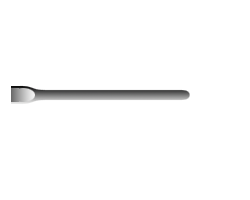
7. Using the Dodge and Burn Tools, I adjusted the screwdriver so that it had a little more depth, and darkened up the flat part on the tip.
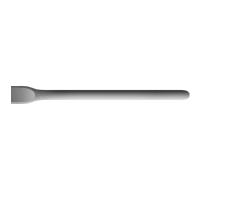
8. Create a new layer and fill it with white. Now, add some noise by going Filter>Noise>Add Noise, move the slider to about half way. Then, apply a motion blur by going Filter>Blur>Motion Blur.
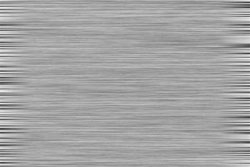
9. Group the layer with the brushed metal on it with the previous layer (which should be your screwdriver), but hitting Ctrl+G while your layer with the brushed metal is selected. Set the Blending Mode of the brushed metal layer to 'Overlay' and lower the opacity.
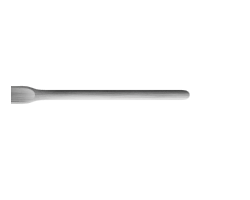
10. Create a new layer. To make the handle, I used the Rounded Rectangle Tool (often hidden under the Line Tool) with a radius of 10, and the Rectangular Marguee.
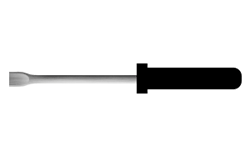
11. I used the rounded shapes method just like we did in Step 2 to smooth the straight edges. Then, I changed the color to blue. To give it some depth, I created a new layer and loaded the shape of the handle as a selection by Ctrl+clicking (Command+clicking) its layer. Then, using the Gradient Tool, I filled the selection in with the default colors. Finally, I set the layer's Blending Mode to 'Overlay' and that's your basic screwdriver.